Database explorer and table editor
Inspect the live database by schema, then edit rows and structure without leaving the dashboard.
What it is
The Database surface is the per-project explorer. It reads the live Postgres catalog through postgres-meta and presents schemas, tables, views, roles, extensions, types, functions, triggers, webhooks, indexes, migrations, backups, row-level security policies and a schema graph. A separate Table Editor provides paged, editable rows without writing SQL.
It is not a static catalogue snapshot. Every list comes from the running database, so a table created in the SQL editor appears in the explorer, and a policy edited here is the policy the database enforces. Which tabs are available depends on the project's state and on what the database actually contains.
Why you need it
Most local Supabase work is done in a browser, and the browser needs a trustworthy view of the database. The explorer answers questions that are awkward from a terminal: what schemas exist, what a table's columns and foreign keys are, which policies protect it, and what indexes the planner can use. The Table Editor covers the common case of correcting a row or importing a small CSV without opening a SQL client.
The database explorer and table editor
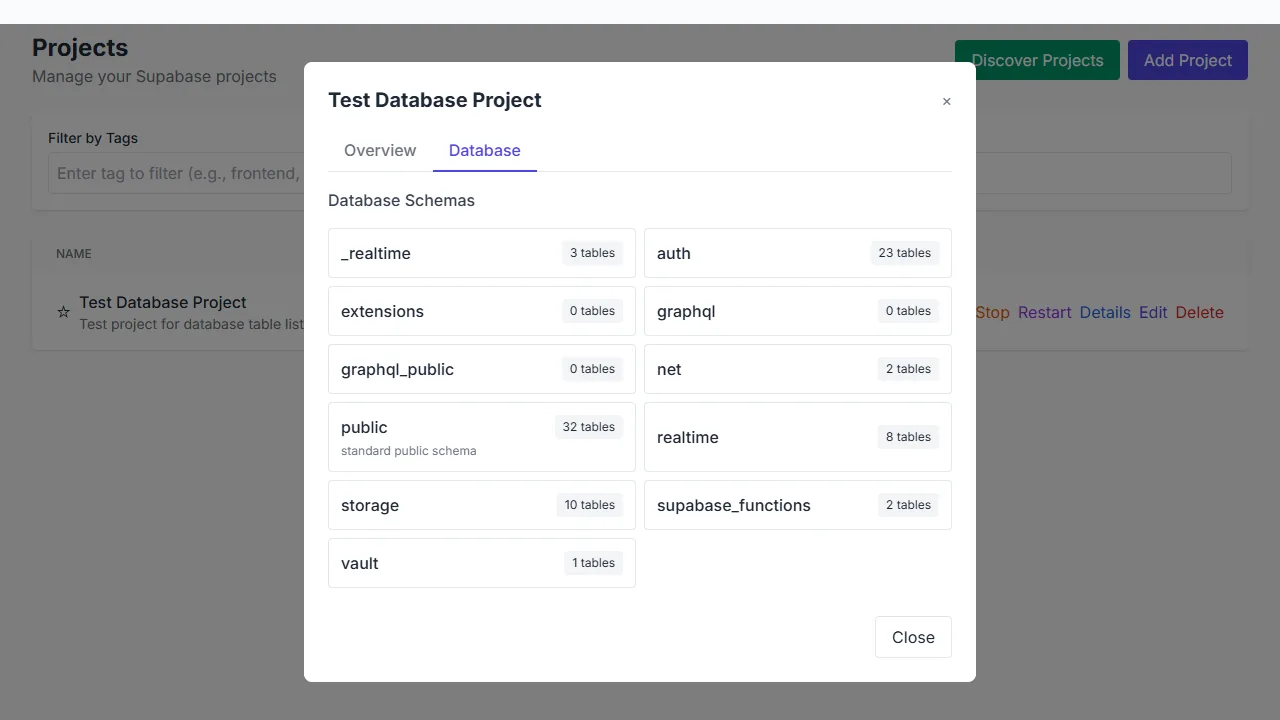
The database explorer groups tables by schema and shows their table counts.
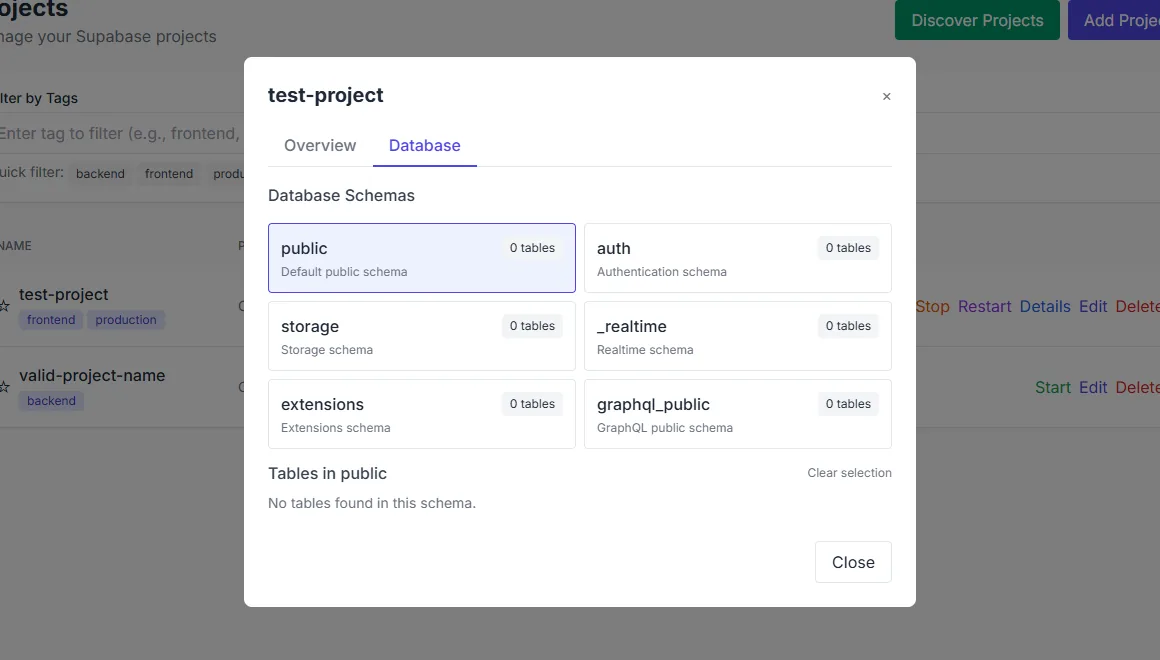
The schema tree narrows the table list to one schema.
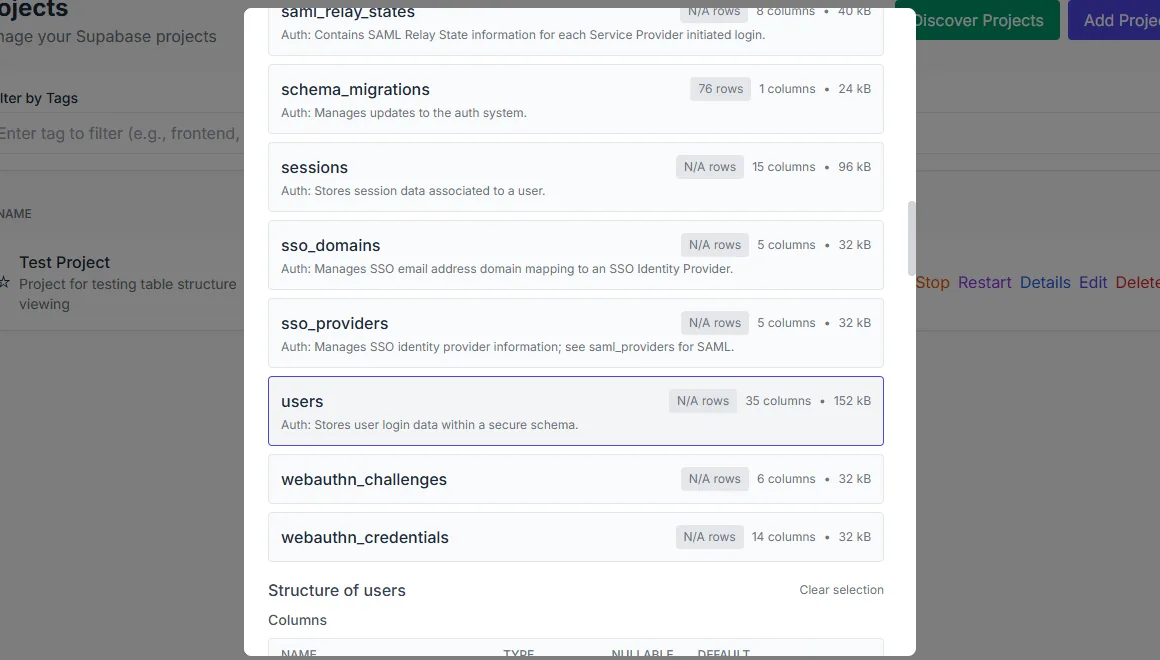
The structure view exposes the real column layout of a table.
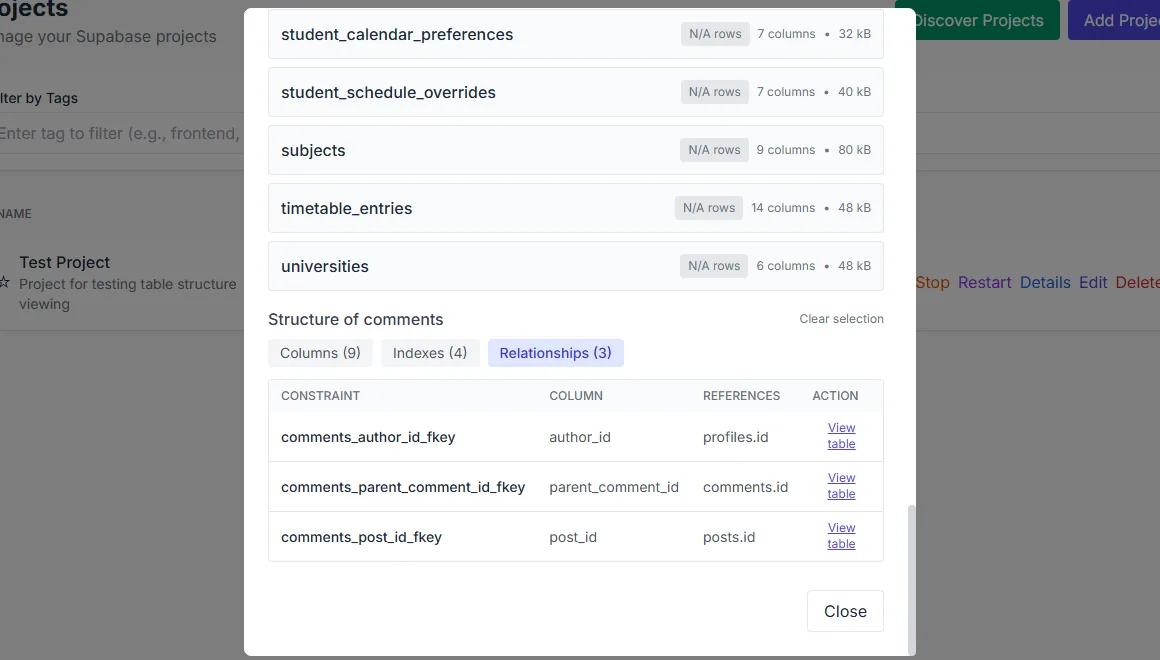
Relationships between tables are visible in the structure view.
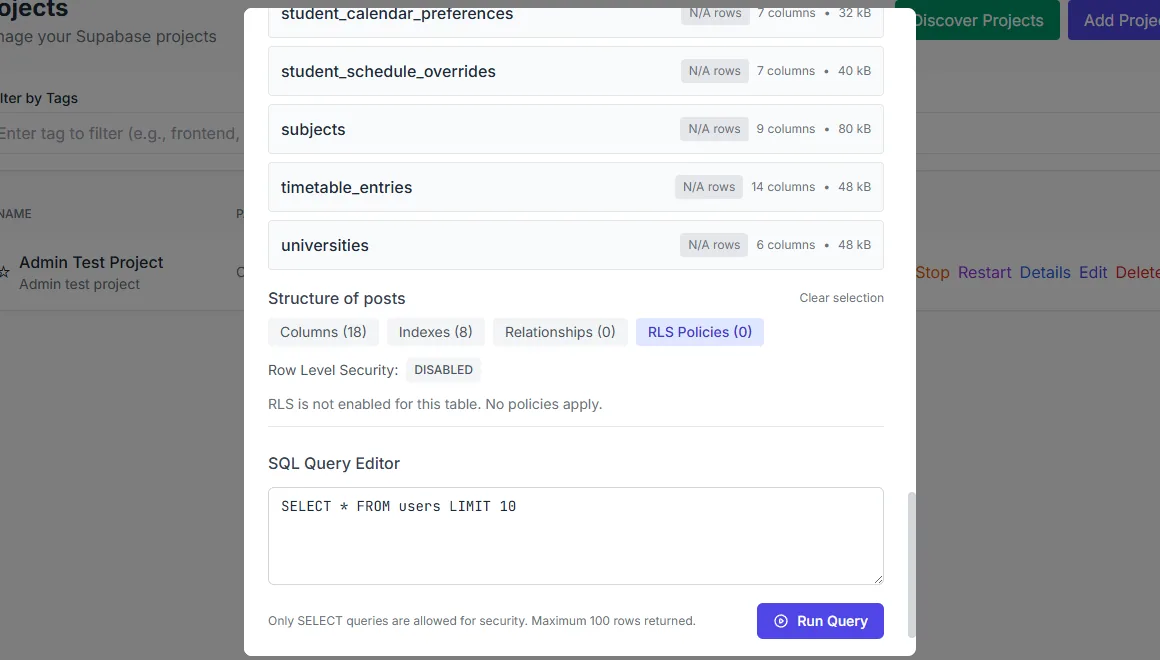
RLS policies can be read and edited per table.
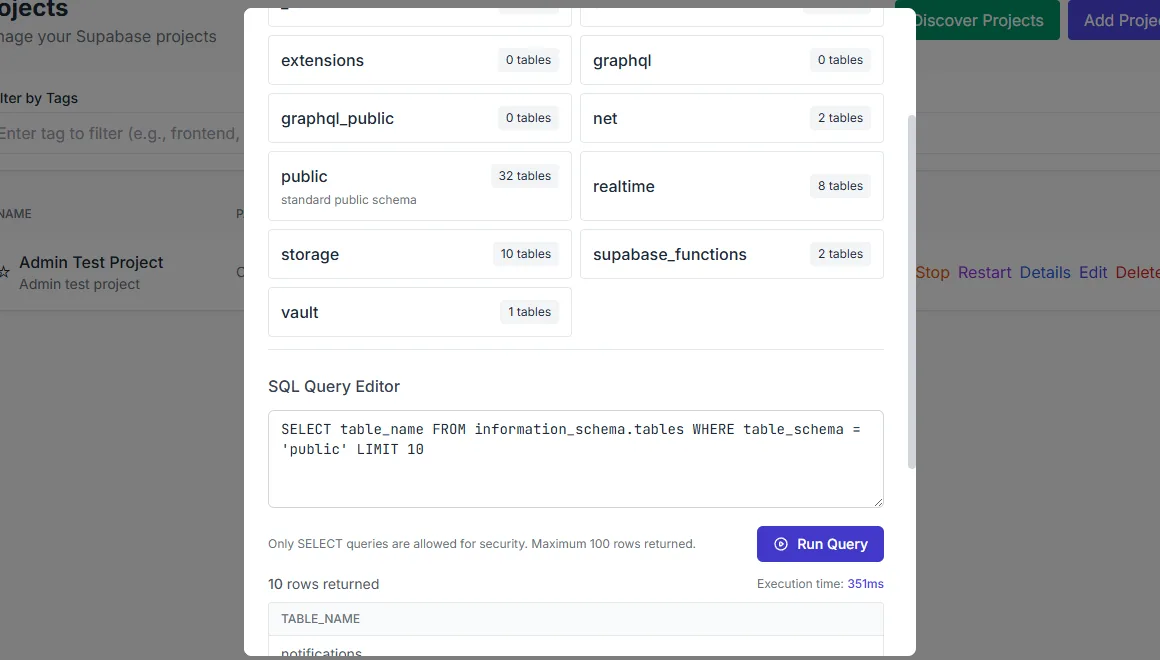
Query results render in a virtualised grid.
What you see
The schema tree groups tables by schema and shows counts. Selecting a table opens its structure: columns with types, nullability and defaults, primary keys, indexes and relationships. The relationships panel names the foreign keys and the table each one points at. The policy panel lists row-level security policies with their command, role and expressions, and exposes the per-table RLS toggle.
The Table Editor adds a grid view. Rows are paged and the grid is virtualised, so a large table does not have to be loaded in full. Insert, update and delete operate on the live table; add-column and CSV import cover structural changes and bulk data. The schema graph draws table relationships from the live catalog.
How to use it
Open a project
Start the project, then open Database from its sidebar.
Choose a schema
Pick a schema in the tree to narrow the table list. The public schema is usually the place to start.
Inspect a table
Open the structure view to read columns, keys, indexes and relationships before changing data.
Edit rows
Use the Table Editor for paged browsing and row changes. Add a column or import a CSV when the change is structural or bulk.
Review policies
Open the RLS panel to read and edit policies, and use the test sandbox to check a policy as a chosen role.
Behaviour and limits
Everything shown is read from the project's live database, so a stopped project has no data to show. The Table Editor pages rows rather than loading the table; very large imports should still go through a SQL file or the CLI. Destructive actions such as dropping a table or deleting rows use typed confirmation where the interface provides it, but the database's own constraints remain the final authority.
Row-level security is enforced by Postgres, not by the interface. The policy panel edits the real policies; the test sandbox runs a probe query as a chosen role. A successful test is evidence about that query and role, not a proof that every access path is covered.
Configuration
Where you see it
The explorer lives under Database in a project's sidebar, with route segments for tables, views, roles, privileges, extensions, types, publications, functions, triggers, webhooks, indexes, columns, query performance, migrations, backups, RLS policies, RLS testing and the schema graph. The Table Editor is a separate route in the same shell.
Working with it
Start from the schema tree, not the table list. The tree tells you which schemas exist and how many tables each holds, which is usually enough to orient yourself in an unfamiliar project. Open a table's structure before editing rows: defaults, foreign keys and policies explain most of the surprises a grid can produce.
Use the schema graph when the question is about relationships rather than data. Use the Table Editor when the change is small and the rows are easy to identify. For anything larger, write the statement in the SQL workbench so it can be reviewed and repeated.
Typical tasks
- Find a table by schema and inspect its columns and keys.
- Check which foreign keys point at a table before deleting a row.
- Edit a small number of rows in the grid.
- Add a column or import a CSV with a mapping preview.
- Read the policies on a table before trusting its access rules.