SQL workbench
A role-aware SQL editor with snippets, history, exports, explain plans and an assistant that shows its changes first.
What it is
The SQL workbench is a project-scoped query editor. It offers a role selector, a read-only toggle, a snippet tree, query history, cancellation for a running statement, an EXPLAIN plan action, result export and an assistant that proposes SQL and shows its changes before you apply them.
Queries run against the project's own Postgres instance with the allocated database port. Results render in a virtualised grid, and a history entry records the statement, its status, its duration and its row count.
Why you need it
Some questions are faster in SQL than in a grid: a join, an aggregate, a constraint check, an index experiment. The workbench keeps that work beside the project, with the right role and the right database already selected. History and snippets matter just as much: the query you ran yesterday is usually the starting point for the one you need today.
The SQL workbench
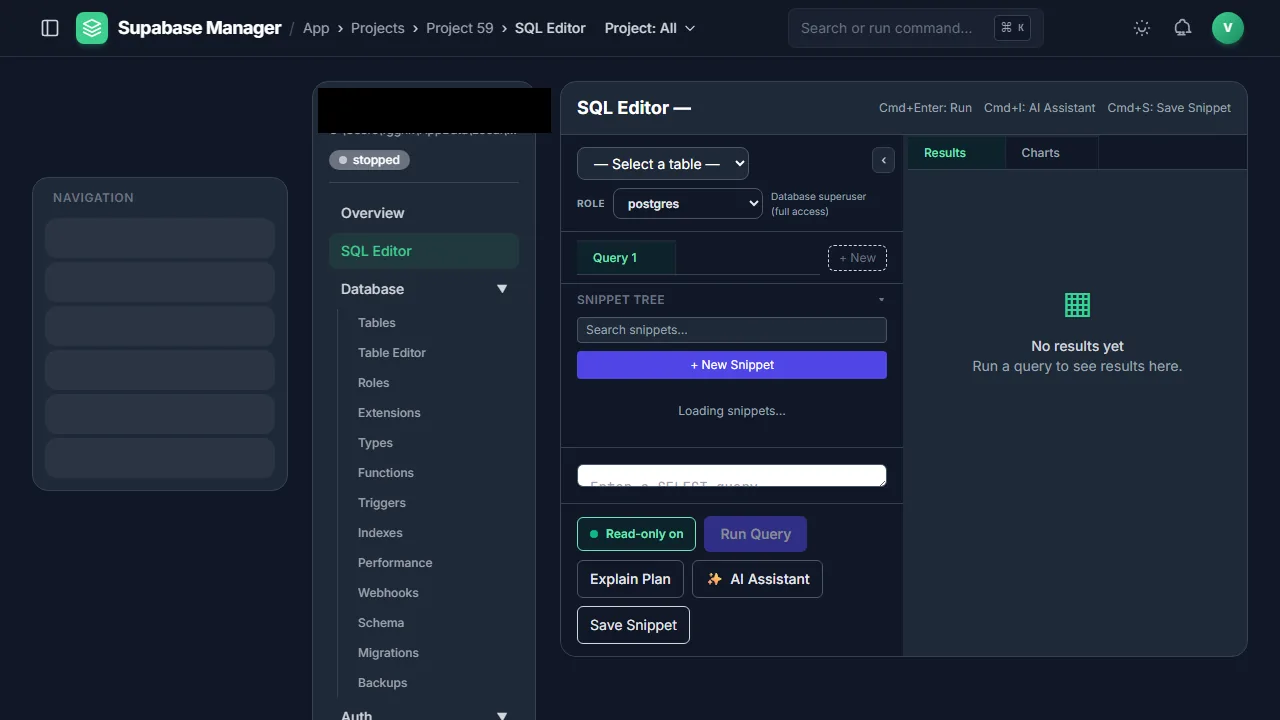
The SQL workbench combines snippets, role-aware execution, explain plans and an AI assistant.
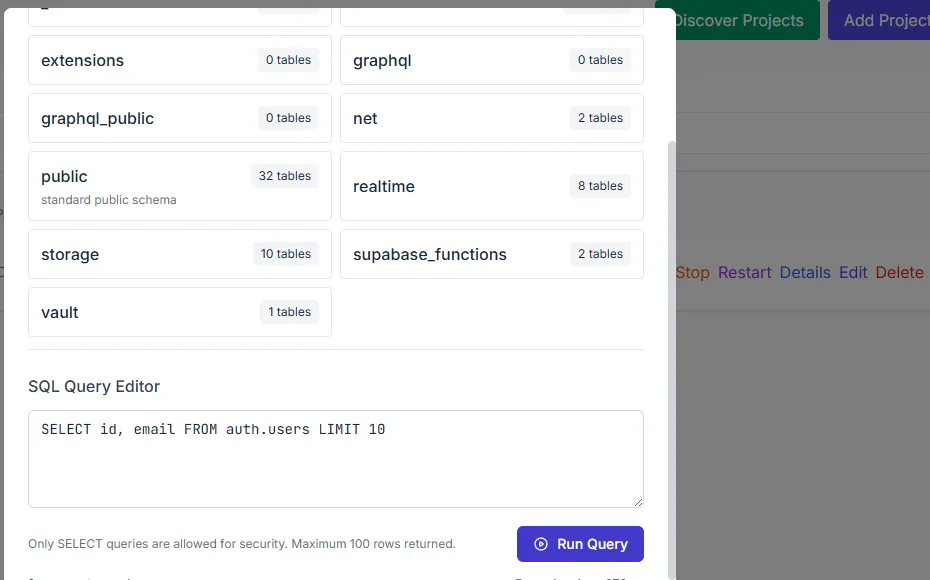
Running a query drops the results into the panel below the editor.
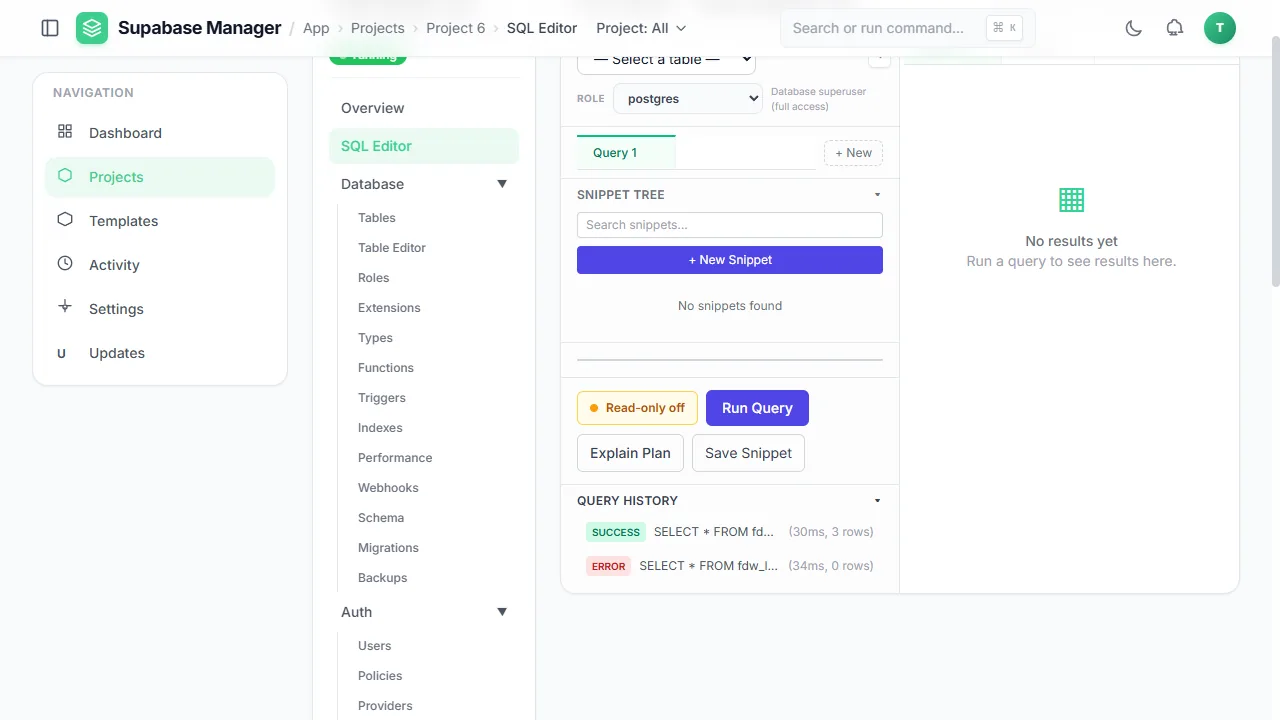
The SQL editor before a query is run, with the query history showing a success and an error.
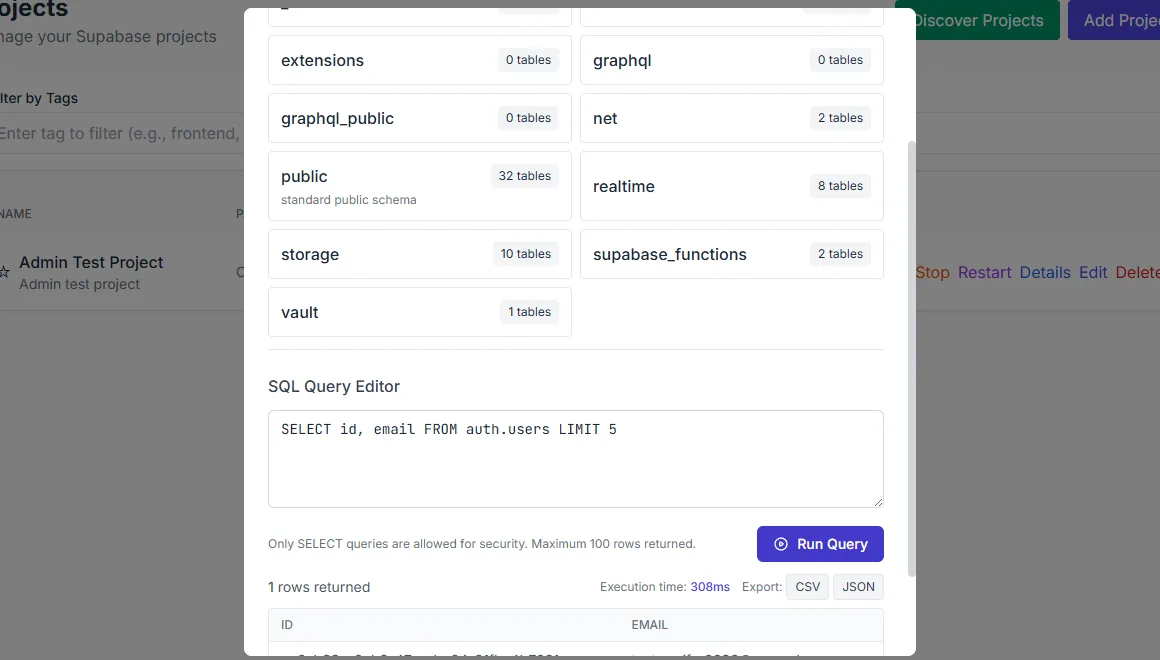
The export menu chooses the result format.
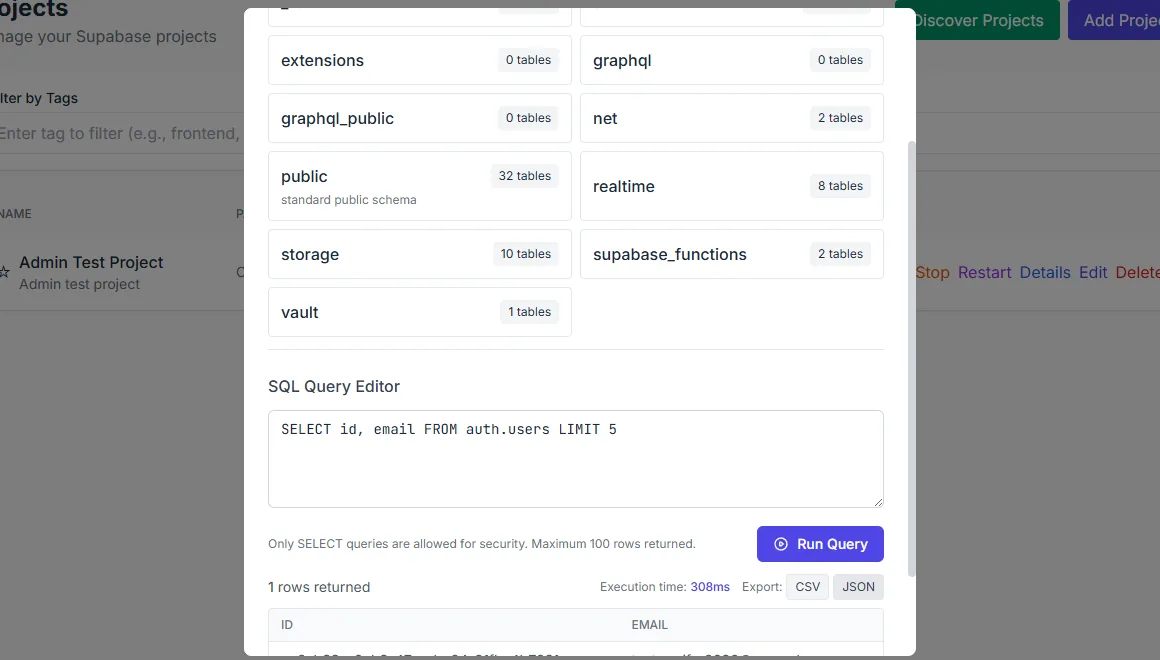
Query results can be exported and the completion state is visible.
What you see
The editor fills the centre of the page. Above it sit the role picker and the read-only toggle; beside it sit the snippet tree and the query history. Running a query shows a results tab, the elapsed time and the row count. A failed statement keeps its error in the history and in the results area rather than disappearing. Export offers CSV and JSON, and the completion state stays visible.
The assistant is optional. It produces SQL from a request, but the workbench presents the change before it is applied, so the database is not modified by a suggestion you have not read.
How to use it
Choose a role
Run as postgres for full access, or pick a narrower role to check what that role can actually see.
Write or load a query
Use the editor, open a saved snippet, or start from a history entry.
Run and read
Run the statement. Read the result grid, the row count and the timing; cancel a long query if needed.
Explain a plan
Send the statement through EXPLAIN when the question is about performance rather than data.
Save and export
Save the statement as a snippet and export the result as CSV or JSON.
Behaviour and limits
The workbench is a client over the project's database. It does not sandbox SQL: a statement that drops a table will drop it. The role selector changes the role the statement runs as, which is useful for testing permissions, but the postgres role still has full access. The read-only toggle is a guard against accidental writes, not a security boundary.
Long-running statements can be cancelled, and the history records the outcome. Results are virtualised in the grid, but the export contains the rows the query returned. Very large exports are better done with a server-side tool than through the browser.
Configuration
Where you see it
The SQL editor is a per-project route in the project sidebar. Snippets and history sit in panels beside the editor, the role picker and read-only toggle sit above it, and the assistant opens as a side panel. Export actions live with the result grid.
Working with it
Choose the role before you write the query, because the role changes what the query can see. Use the read-only toggle while exploring and turn it off only for the statement that must write. Treat history as a lab notebook: a failed statement with its error is often more useful than the successful one that followed it.
The assistant is best used for shapes you already understand: a join, a window function, a constraint query. Read its proposal against the schema before applying it, and keep the statement as a snippet once it is correct.
Typical tasks
- Run a query as postgres, then repeat it as a narrower role.
- Save a snippet that you expect to reuse.
- Explain a slow query before changing an index.
- Cancel a statement that is taking longer than expected.
- Export a result as CSV or JSON for another tool.
A note on roles
Running as a narrower role is the quickest way to see what an application will actually receive. A query that returns rows as postgres may return nothing as anon, and that difference is the policy working. Keep the role visible in the history so a later reader knows which identity produced the result.