Storage
Browse buckets and objects, upload files with real progress, and manage the policies that govern access.
What it is
Storage manages the project's object store. It lists buckets with their visibility, size and object count, browses objects inside a bucket, uploads files with byte-accurate progress, previews images and video, and generates signed or public URLs. A separate policies view edits the storage policies across buckets and can test a policy for a chosen role.
The storage service is part of the Supabase stack, so the manager reads and writes it through the project's gateway. It does not maintain a second copy of the objects.
Why you need it
Storage bugs are usually permission bugs or path bugs. Seeing the bucket, the object, the URL and the policy in one place makes both easier to diagnose. Upload progress matters too: a large local file over a slow disk is easier to trust when the bytes are counted rather than guessed.
Storage buckets and objects
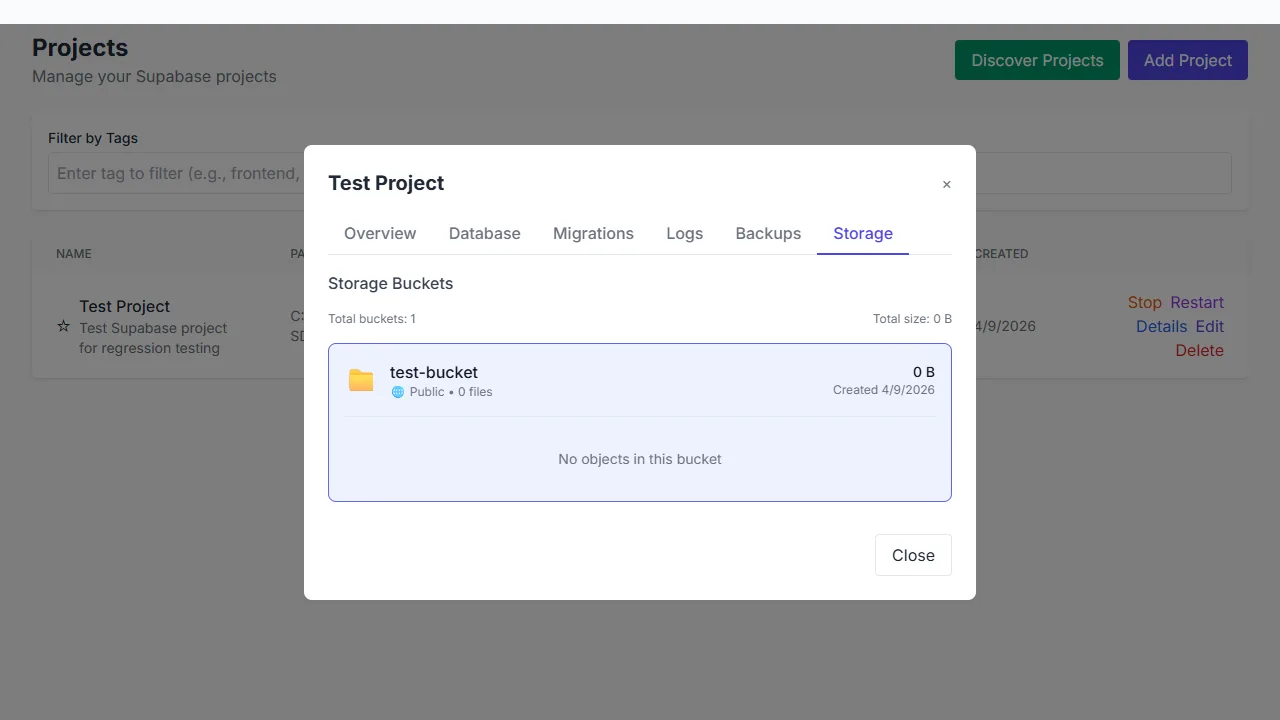
A storage bucket with its visibility and size; the object list is empty.
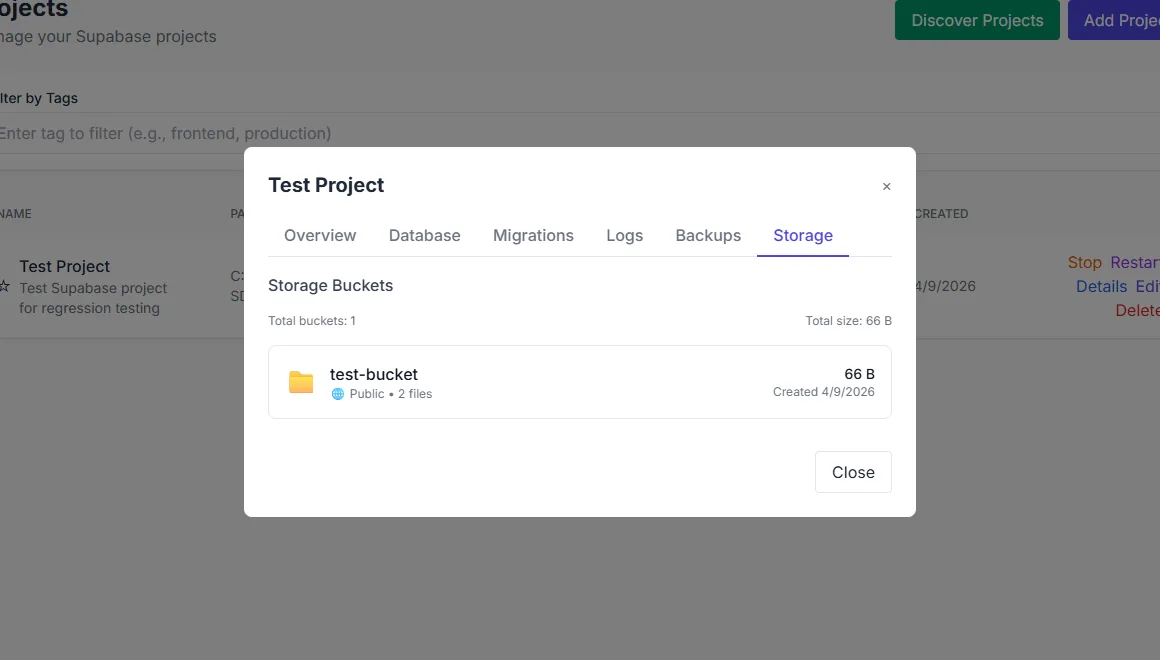
An uploaded file in the object list with its size.
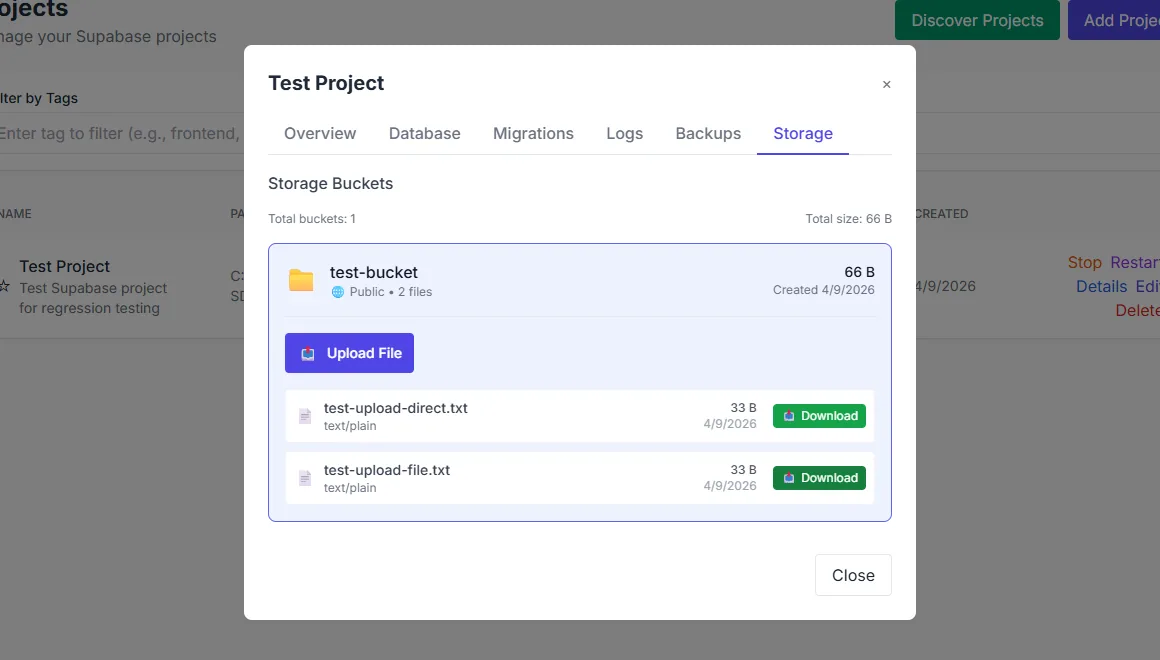
A storage object with its download action open.
What you see
The bucket list shows each bucket's name, visibility, size and object count. Opening a bucket lists its objects with size and type, and offers download and URL actions. The upload control reports progress in bytes and keeps the destination project visible. Image previews use a transformed URL; video previews load a blob. The policies view lists policies per bucket and across buckets, with a test action that answers whether a role is allowed.
How to use it
Open Storage
Choose the project, then Storage. Buckets come from the live storage service.
Create or select a bucket
Set the bucket's visibility deliberately; a public bucket exposes its objects by URL.
Upload a file
Pick a destination and upload. Watch the byte progress rather than assuming the transfer finished.
Preview and copy a URL
Use the preview to confirm the object, then copy a signed or public URL as the bucket's visibility allows.
Review policies
Open Storage Policies and test the policy for the role your application will use.
Behaviour and limits
Bucket visibility and storage policies are different controls. A private bucket can still be reachable through a signed URL, and a public bucket bypasses object-level authorization for reads. Test the policy for the role and operation you actually depend on.
The browser upload path is convenient for ordinary files. Very large objects are better uploaded with a dedicated client. A stopped project cannot serve objects, and the storage views then have nothing live to show.
Configuration
Where you see it
Storage is a per-project route. The bucket list is the landing view, the object list opens inside a bucket, uploads run from the same surface, and Storage Policies is a sibling route for the cross-bucket policy view.
Working with it
Decide the bucket's visibility before you upload anything. A public bucket is public, and no policy changes that. For private data, keep the bucket private and generate a signed URL for the specific object and lifetime you need.
Upload a small file first to confirm the destination and the policy. Then upload the real object and watch the byte progress until it completes. If a download fails, check the policy for the role before you check the object: a missing object and a denied read can look similar in a client.
Typical tasks
- List buckets and compare their visibility and object counts.
- Upload a file and confirm its size in the object list.
- Preview an image through a transformed URL.
- Copy a signed URL for a private object.
- Test a storage policy for the role your application uses.
URLs and lifetimes
A signed URL carries its own authorization for a limited time. It is the right tool for a private object that a browser needs briefly. A public URL depends on the bucket being public, which is a broader decision than one object. Choose the narrowest option that works, and do not paste a signed URL somewhere it will outlive its intended audience.
Object paths are part of the application's contract. Renaming or moving objects breaks stored URLs, so treat the prefix as a small API. When an upload fails, check the destination path and the policy before you retry; a retry against the wrong bucket only creates confusion.
In one sentence
Choose the bucket's visibility, upload with visible progress, and use a signed URL for a private object rather than making the bucket public.