Logs and observability
Follow what a stack is doing, per service, and see the traffic that passes through its APIs.
What it is
Logs and Observability answer different questions. The Logs surfaces show what a project's services are saying right now: a per-service container log tail and a log explorer with six sources, level filters, time presets, saved queries and a live stream. Observability shows traffic over time: API requests, latency, errors, CPU and memory, plus separate views for database, auth, storage, realtime and edge-function traffic.
Both read from the project's own services and from the manager's access logs. They are read-only views; they do not change the stack.
Why you need it
A local stack fails quietly. A request returns 401 because an auth link is wrong, a function times out, a policy denies a row, or a container restarts. The fastest way from symptom to cause is the service log next to the traffic chart. Keeping them together removes the terminal detour and the guesswork about which container is which.
Logs and the six observability views
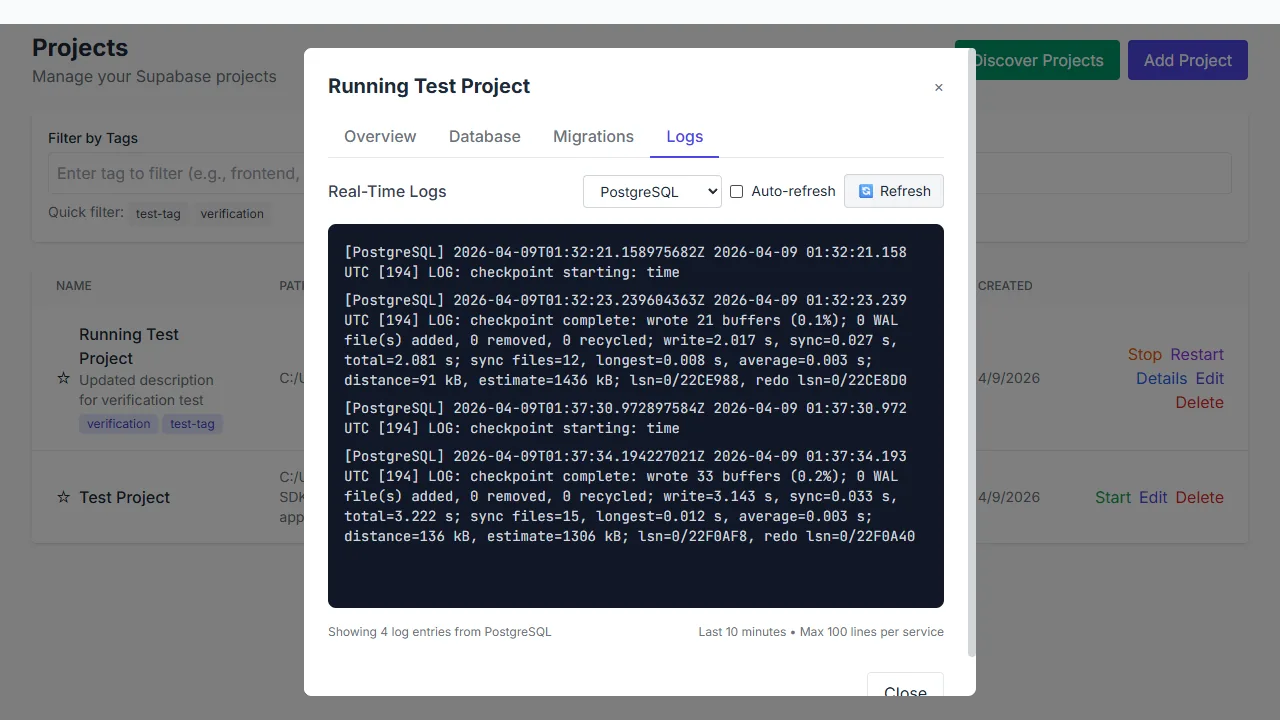
Service logs can be filtered and followed live.
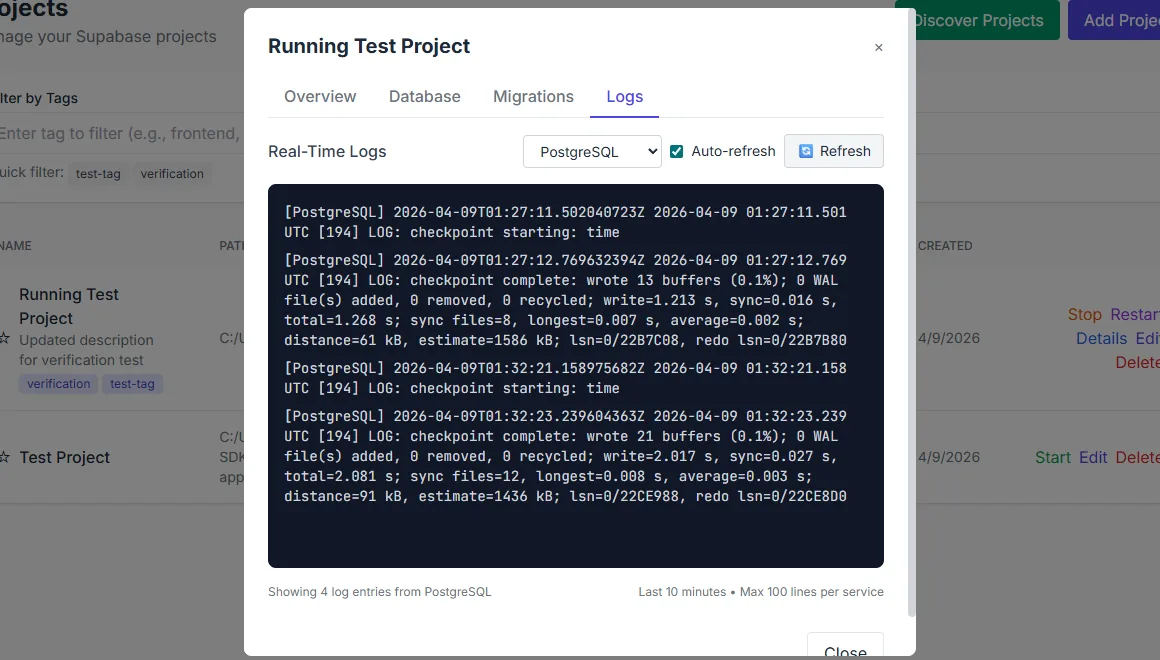
Log streams update while the panel is open.
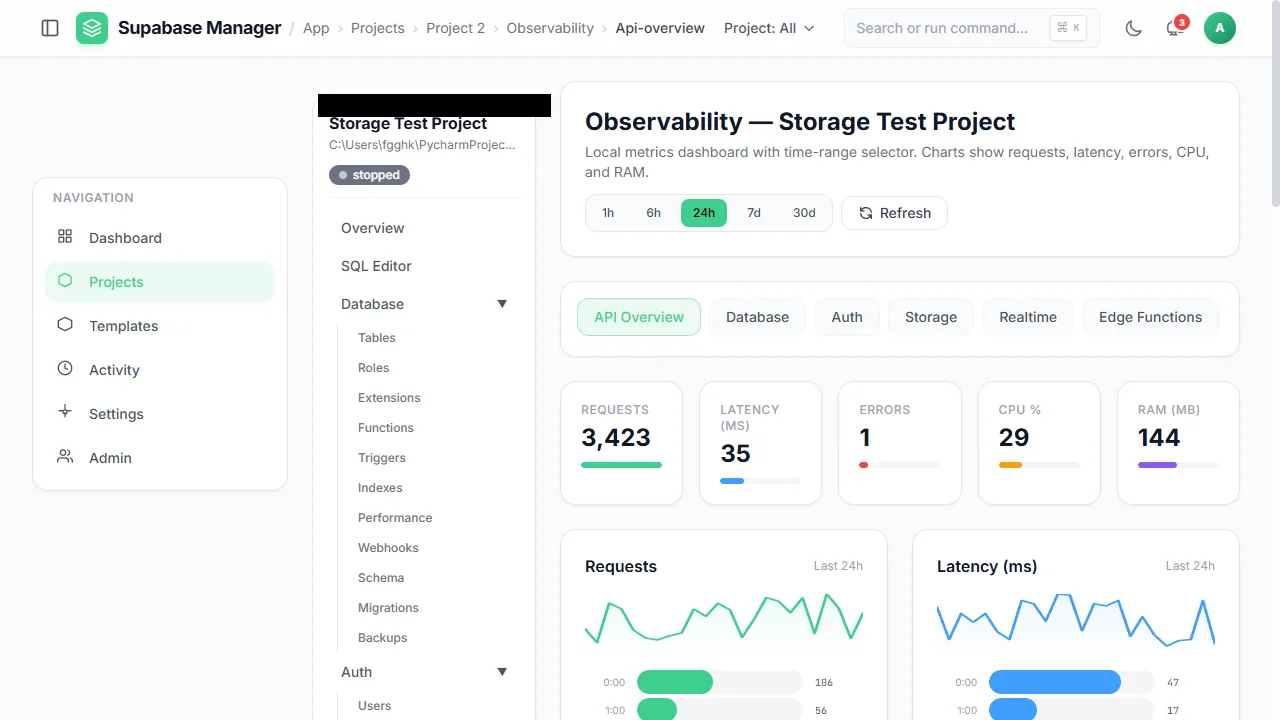
Observability collects API request, latency, error, CPU and memory metrics.
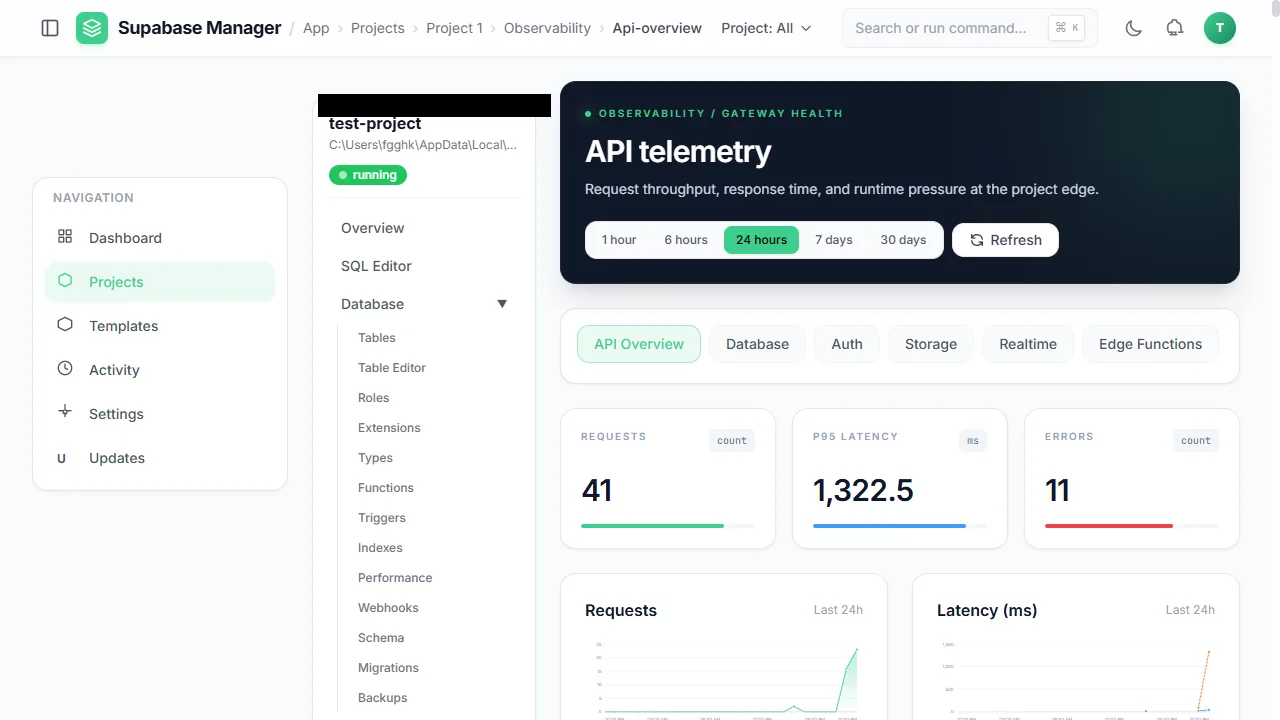
API traffic is tracked with configurable time ranges.
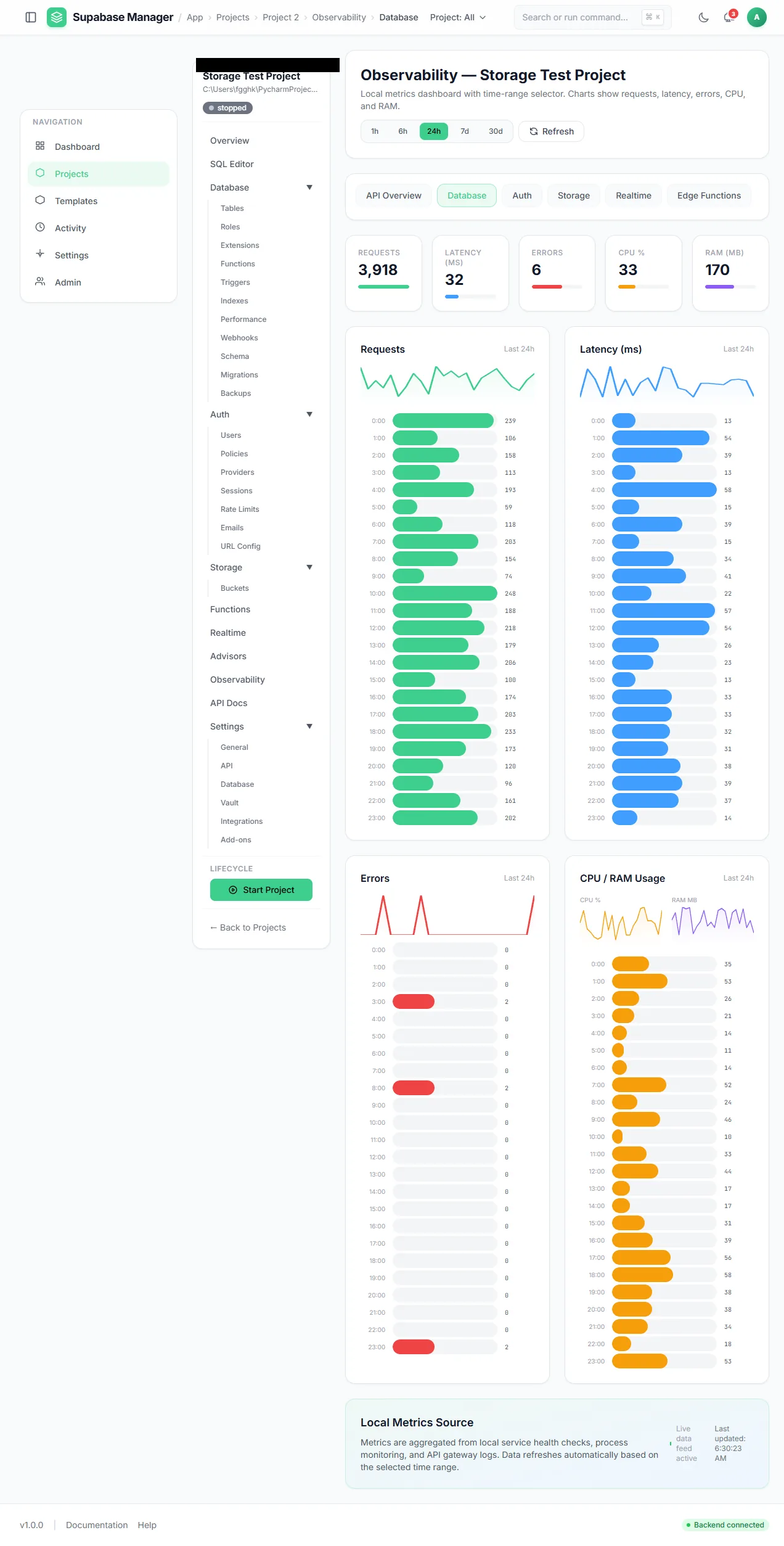
Database traffic is charted in its own observability view.
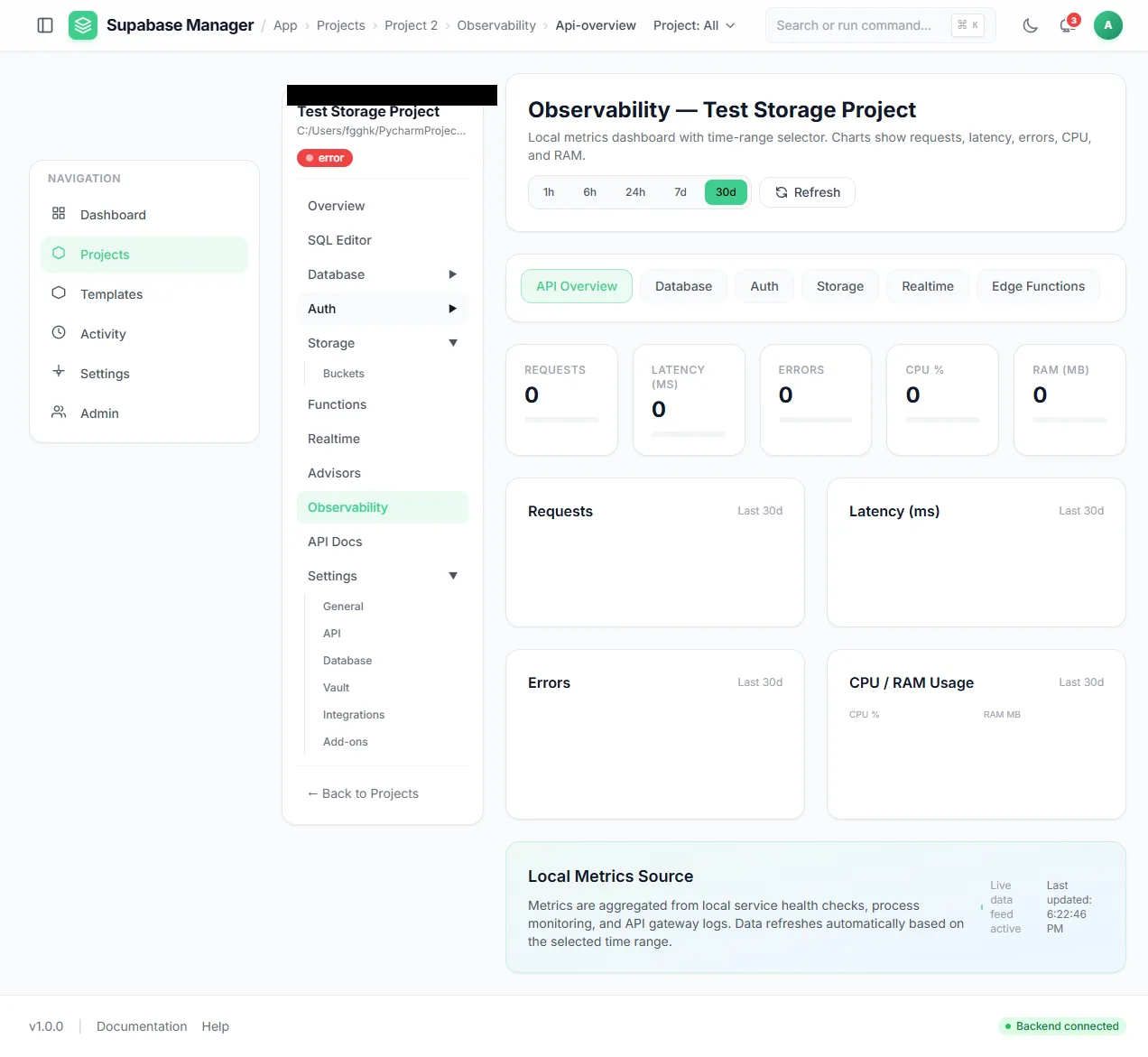
Auth traffic is charted in its own observability view.
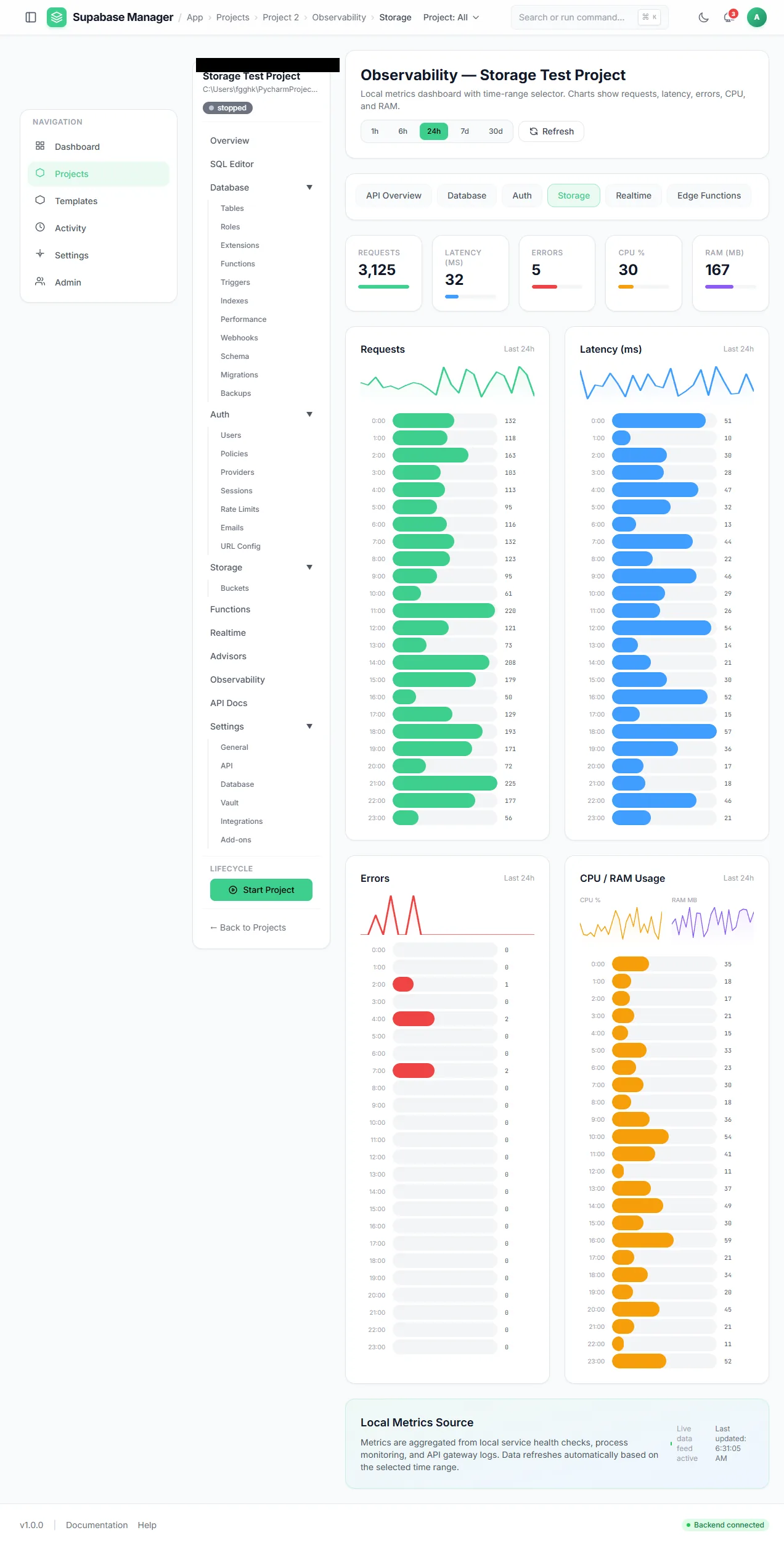
Storage traffic is charted alongside the other views.
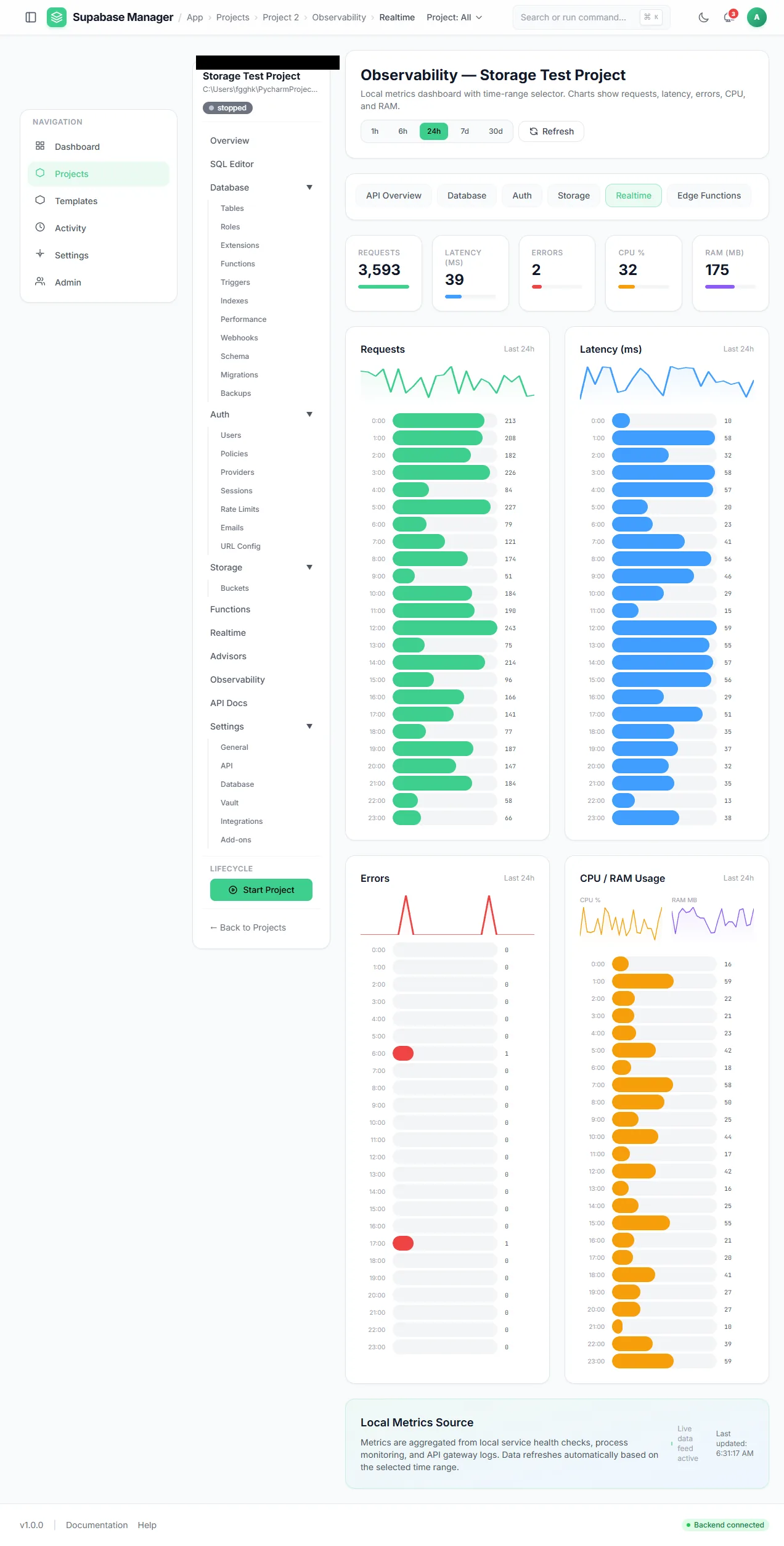
Real-time traffic is charted alongside the other service views.
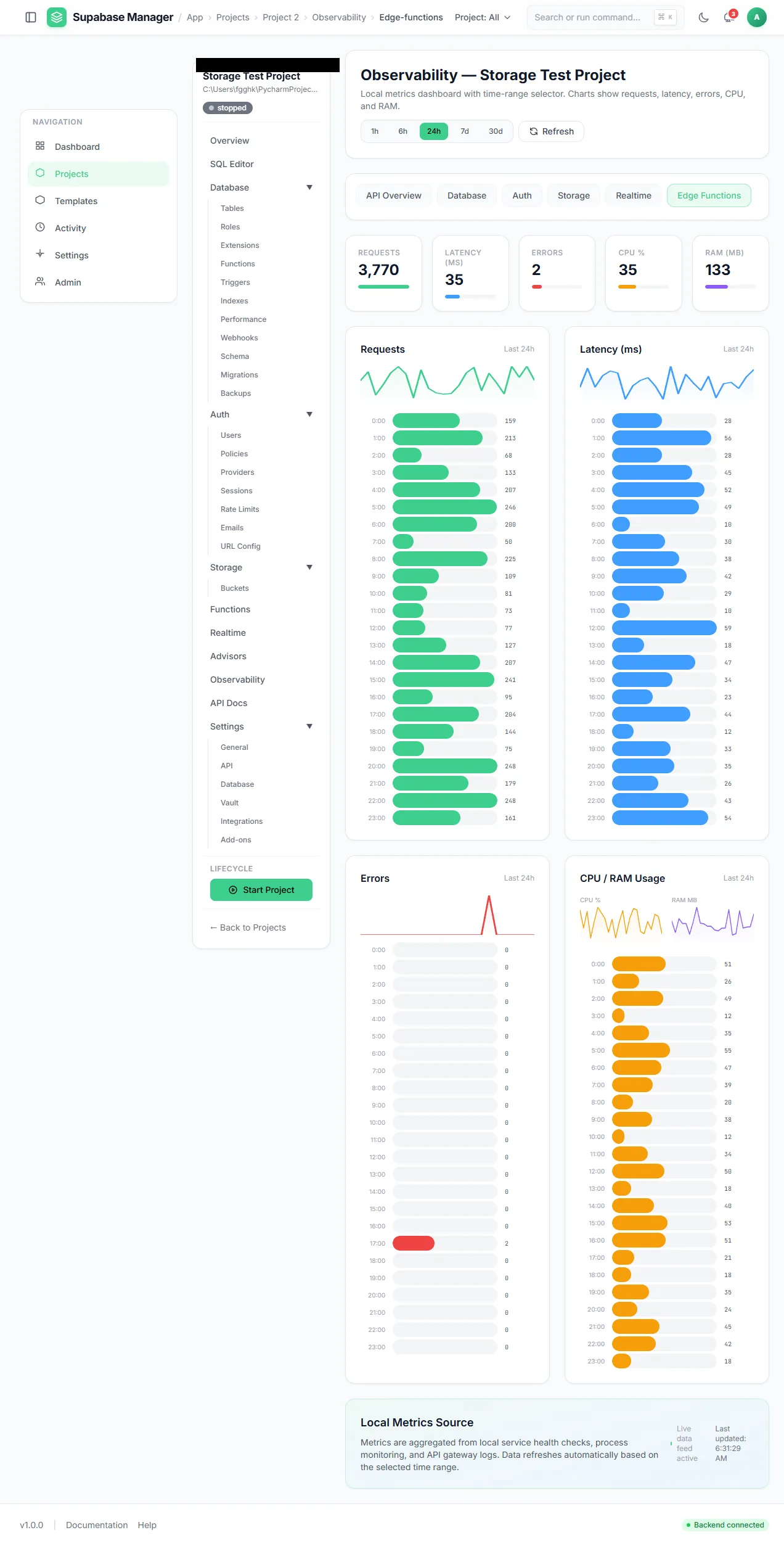
Edge-function traffic is tracked separately from the API.
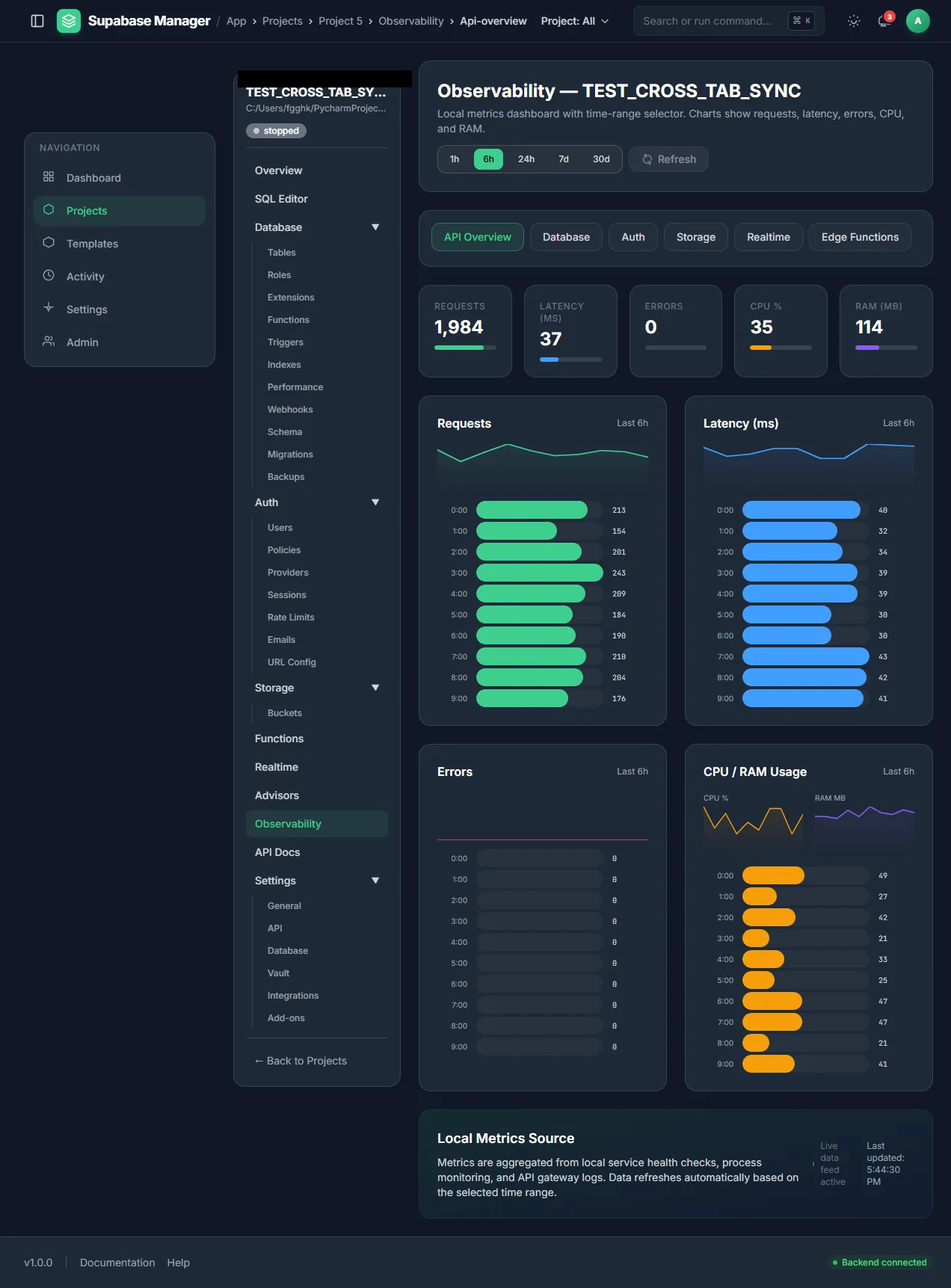
The same observability view on a six-hour range.
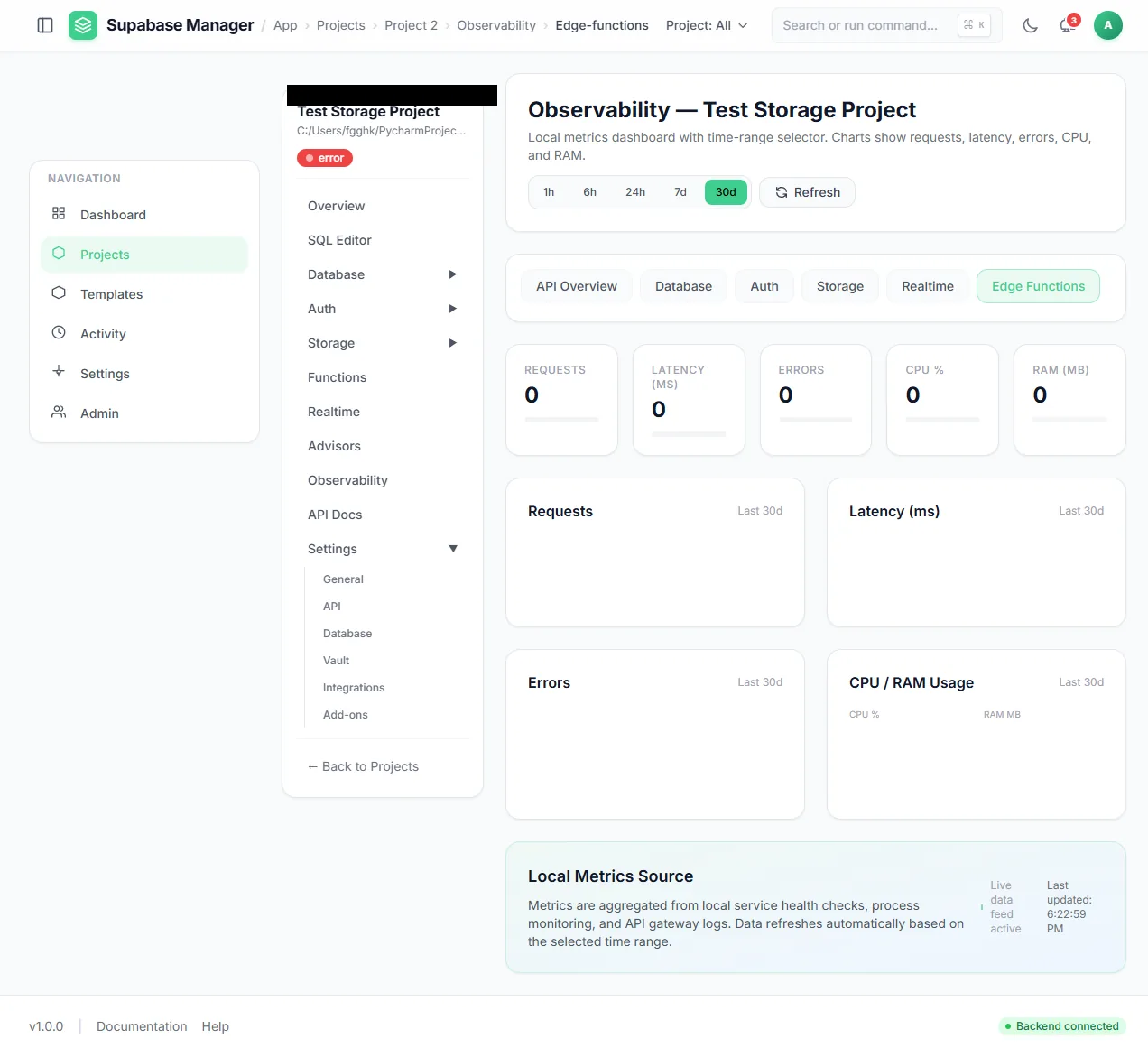
Refreshing recomputes the counters from the access logs.
What you see
The Logs page tails a chosen service, with a source filter and an auto-refresh control. The Log Explorer offers six sources, level chips and time presets, runs a SQL-like query, saves queries and can follow a live stream. Observability has six route views and a range selector from one hour to thirty days. Counters sit above request and latency charts, and a refresh recomputes them from the access logs.
How to use it
Start with the service log
Choose the service that is failing: gateway, auth, database, storage, realtime, functions or analytics.
Filter the noise
Narrow by level, time and source before reading. A log tail without a filter is rarely useful.
Open the explorer
Use a saved or ad-hoc query over a log source when you need to search rather than watch.
Check traffic
Open Observability, choose the view and range, and compare errors and latency with the log timeline.
Refresh after a change
Recompute the counters after reproducing the problem so the chart reflects the new request.
Behaviour and limits
Observability is computed from access logs retained under the admin retention setting, so a longer range is limited by what has been retained. The live stream is a tail, not a durable archive. CPU and memory samples are point-in-time values; they are useful for a quick diagnosis, not for capacity planning.
The six views separate services, but they share the same underlying request path. A request that fails before reaching a service can appear in the gateway view without appearing in the service view, which is usually the clue you need.
Configuration
Where you see it
Logs and Observability are sibling per-project routes. The logs page tails one service; the log explorer adds six sources, saved queries and a live stream; Observability has six views and a time range selector. A denial log from the front door and the proxy is in the manager's log directory.
Working with it
Reproduce the problem, then read the narrowest window that contains it. A service log with the right filter is usually faster than a traffic chart. Move to Observability when the question is about volume, latency or errors over time, and use the service views to separate a gateway problem from a database or auth problem.
Keep the time range honest. A one-hour range that excludes the failing request will look healthy. Refresh the counters after the reproduction so the chart reflects the request you just made.
Typical tasks
- Tail the gateway log while a client request fails.
- Filter the explorer by level and time and save the query.
- Compare API errors with database and auth traffic.
- Switch the range to six hours to see a wider pattern.
Reading a request end to end
Pick one failing request and follow it across the views. The gateway view shows the request arriving; the service view shows whether the destination handled it; the service log shows the error. A request missing from the gateway view never reached the project, so the front door or the client is the place to look. A request in the gateway view but missing from the service view stopped at the project boundary.