Projects
Every local Supabase folder in one register, with discovery, lifecycle actions, tags and a reserved port block.
What it is
Projects is the register of local Supabase stacks. Each entry is a folder on the machine with a Supabase configuration inside it, plus the manager's record of its status, tags, favourite flag and reserved port block. From this page you create a project, discover existing installations, import them in bulk, start or stop a stack, open its workbench, edit its details or delete it.
The page is deliberately plain about state. A project is running only when its containers are running; a stopped project keeps its files and its allocated ports, and a deleted project can be restored from a short-lived undo action before the record is removed.
Why you need it
Local Supabase folders accumulate. Without a register, remembering which folder is on which port, which one is running, and which one you already imported becomes guesswork. The project list gives every stack a name, a path, a status and a set of actions, and discovery finds existing installations so you do not have to retype their details.
Ports are the other reason. A project is not started until the allocator has reserved its 11-port block and written the values into supabase/config.toml. That single step is what stops two local stacks from fighting over the same gateway port.
The project register
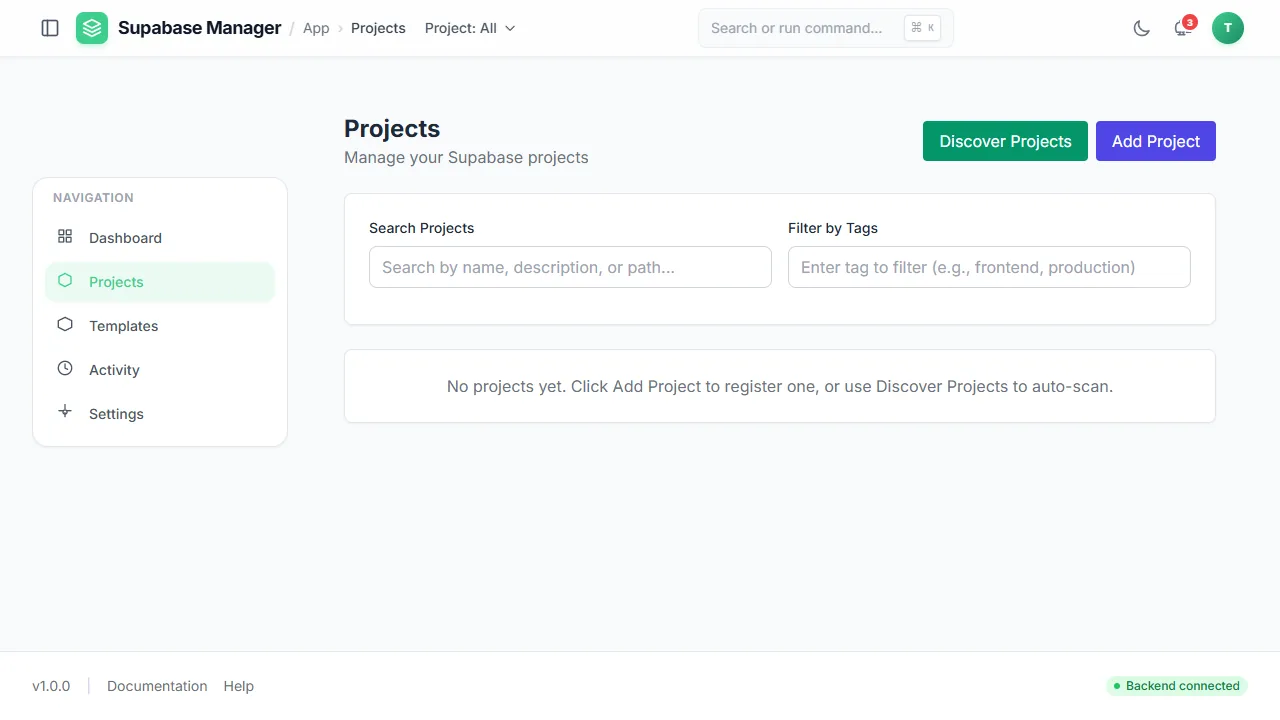
An empty project register on a fresh install, with both the add and the discover route offered.
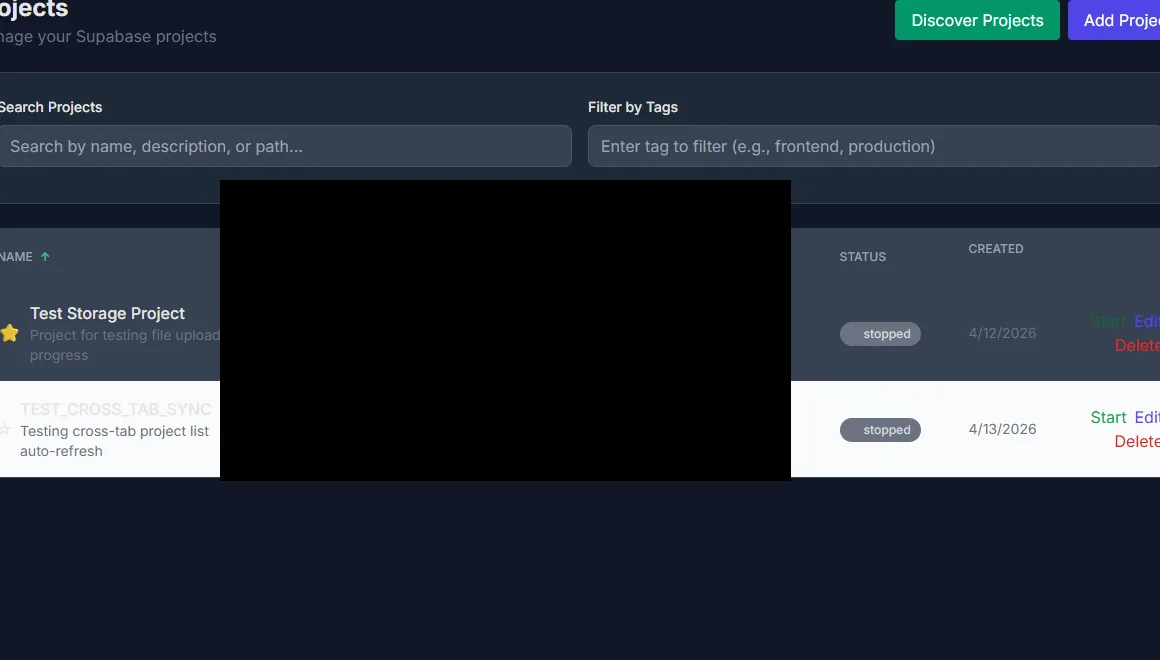
Project rows with status, path and the actions available in each state. Paths are redacted.
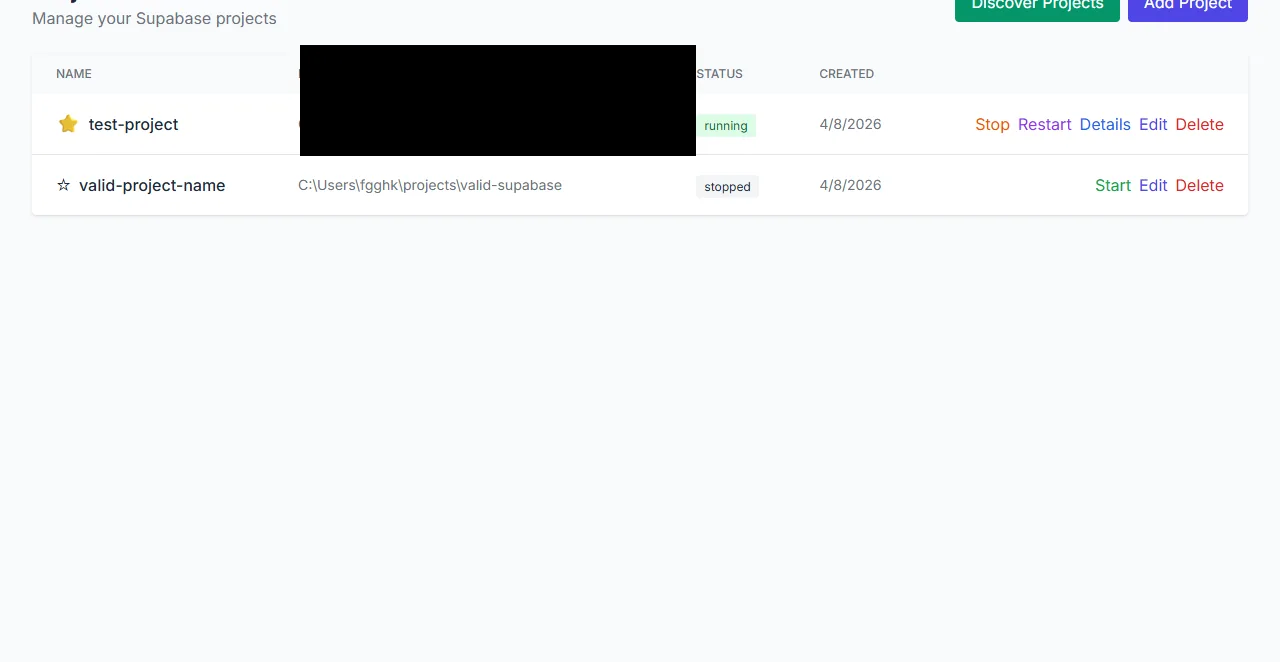
The project register after a reload, with the favourite marker retained on the first project.
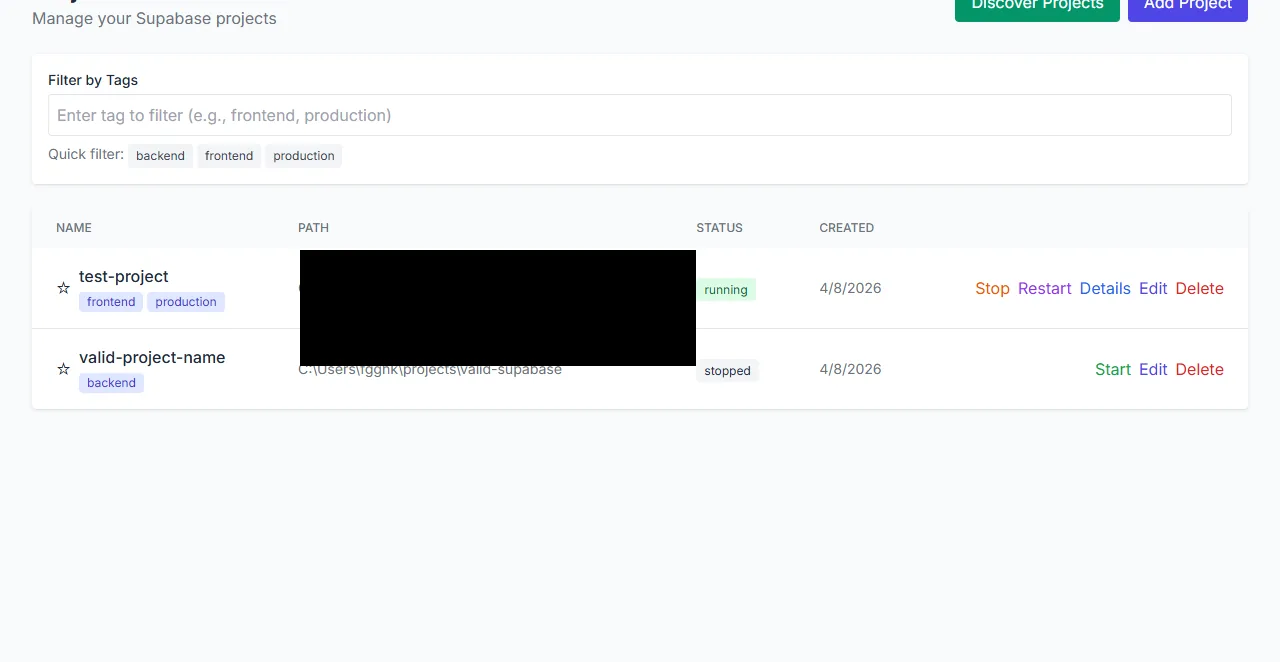
Projects grouped by tags, with a quick filter for each tag.
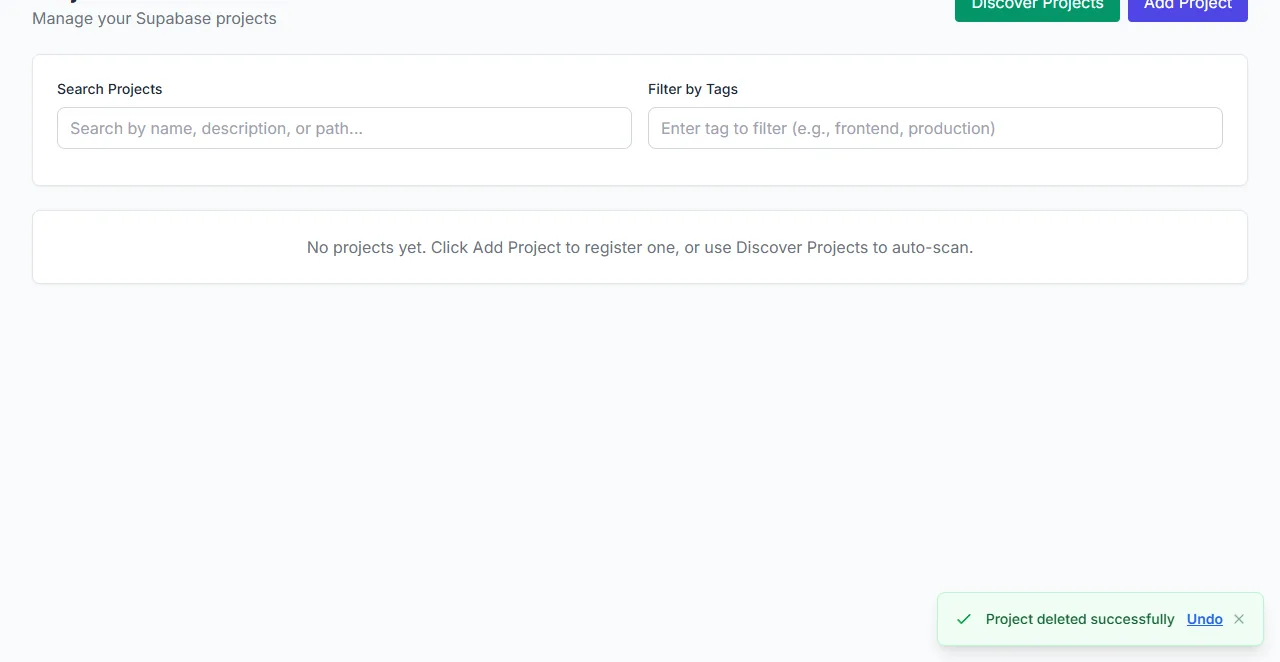
After a delete, an undo action stays available in the corner of the page.
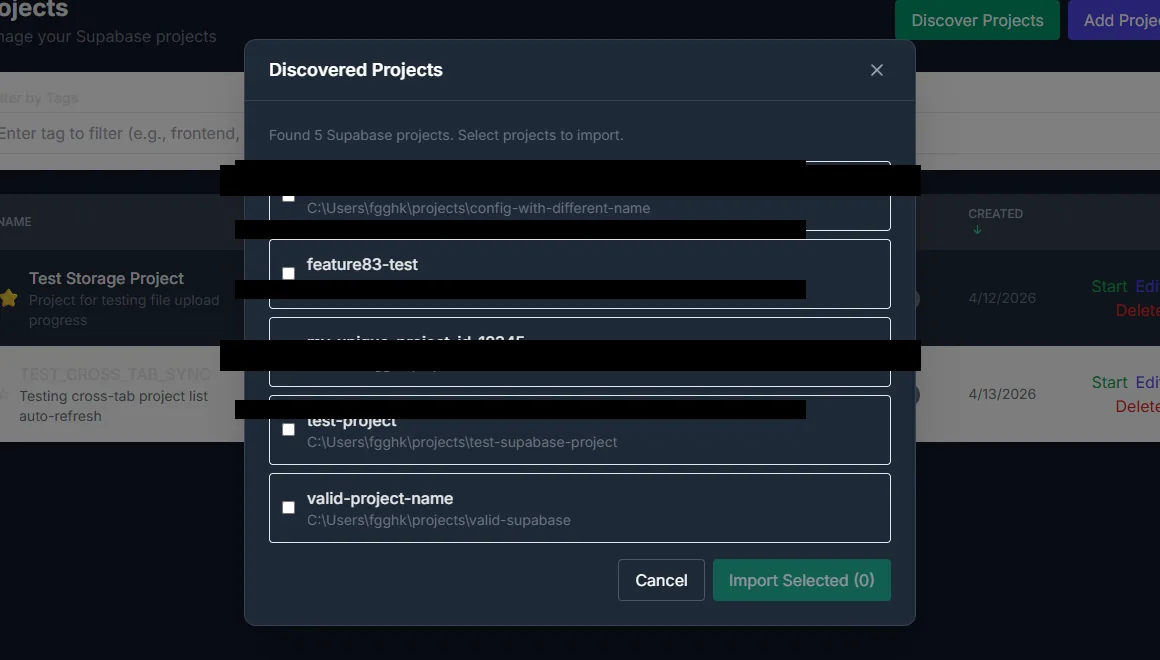
The discovery dialog listing Supabase installations found on the machine. Paths are redacted.
What you see
The list shows name, path, status, creation time and the actions available for that state. A running project can be stopped, restarted, opened, edited or deleted; a stopped project can be started. Search matches name, description or path, and tag chips narrow the list. The favourite marker pins the projects you use most, and it persists across reloads. The empty state explains both routes in: add a project by hand, or scan for existing Supabase installations.
Discovery lists what it found with the folder name and path, and lets you select several projects for a bulk import. A project that is already registered must not be imported twice, so the flow reports conflicts rather than silently duplicating them. After a delete, a toast keeps an undo action available for a short window.
How to use it
Add a project
Choose Add Project and supply the folder that contains the Supabase configuration, a name and an optional description.
Or discover existing projects
Choose Discover Projects, review the installations found on the machine and select the ones to import.
Start the stack
Starting a project reserves its port block, rewrites its configuration and runs the Supabase CLI. The first start pulls images and takes longer.
Organise with tags and favourites
Tags filter the list; favourites keep the projects you touch most at hand.
Open the workbench
The project row opens the per-project surfaces: overview, database, SQL, auth, storage, logs, migrations, backups and settings.
Delete safely
Deleting asks for confirmation. If you change your mind immediately, use the undo action in the toast.
Behaviour and limits
Starting a project runs preflight checks: the path must exist, Docker must be running, and none of the project's checked ports may be held by another project or another host process. The manager can adopt its own leftover containers after an unclean stop, but it will not take a port owned by something else.
The practical number of projects is limited by Docker's memory, disk and CPU, not by a fixed count in the manager. Each project keeps its block while it exists; a released slot becomes reusable. Imported projects that originally used the Supabase CLI's default ports are preserved as legacy allocations and receive a 60000-band block on a later managed start.
Configuration
SUPABASE_WRAPPER_PROJECTS_ROOT, paths outside that root and symlinks pointing outside it are rejected.Where you see it
Projects is a top-level navigation item and the place every project-scoped page starts from. The Add Project and Discover Projects actions sit at the top right of the list, and each row exposes the actions allowed in its current state. The empty state names both routes in so a new install is not a dead end.
Working with it
Register projects in the way that matches how they were created. A folder that already has a Supabase configuration is a candidate for discovery; a folder you are about to create is a candidate for the add form. After a start, open the overview before you open a client, so you know which services actually came up. When a project will not start, read the error step before retrying: a port conflict and a missing Docker daemon need different fixes.
Typical tasks
- Add a single project from a folder you already have.
- Discover several existing Supabase installations and import them in one pass.
- Start, stop or restart a stack and watch the row change state.
- Tag projects by purpose and filter the list to one tag.
- Delete a project and use the undo action before the record is removed.