Backups
Named database restore points per project, created on demand and restored deliberately.
What it is
Backups are per-project database snapshots. The Backups tab lists the project's restore points, creates a new one on demand, and restores a selected backup into the project. Each backup is a .sql file written under the project's supabase/backups directory, with its metadata recorded in the manager database so the list survives a manager restart.
The manager does not run a background backup schedule by itself. A backup exists because you created one, and the list tells you what exists rather than implying a retention policy.
Why you need it
Local databases are easy to break and hard to remember. A migration, an import, a destructive policy test or an experiment in the SQL editor can remove data that took an afternoon to create. A named restore point turns that from a disaster into an inconvenience, and it costs one click before the risky change.
The Backups tab and its create action
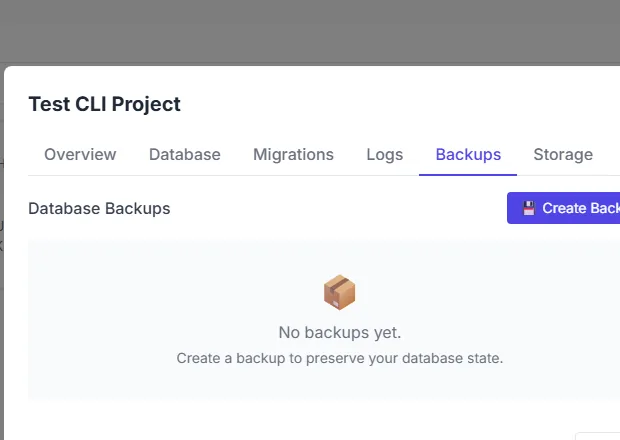
The Backups tab with no restore points yet and a Create Backup action.
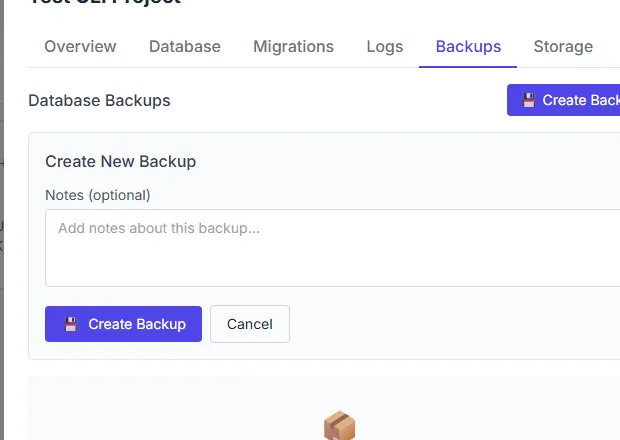
The create-backup dialog naming the backup before it is written.
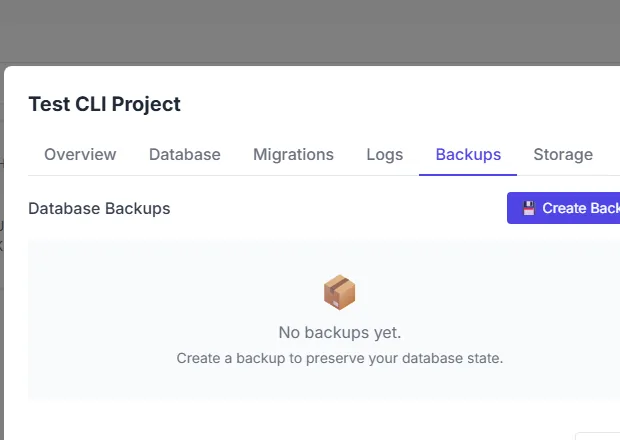
The Backups tab after the dialog closes; the list stays empty until a backup is written.
What you see
The Backups tab states the current position plainly: when no backups exist, it says so and offers a Create Backup action. The create dialog names the backup and confirms the action. Existing backups appear as rows with the information needed to choose one, including when it was taken and where it is stored. Restoring a backup asks for confirmation because it replaces the current database state.
How to use it
Open the project's Database tab
Choose the project, open Database, then Backups.
Create a restore point
Choose Create Backup, give it a recognizable name and confirm.
Confirm it exists
The new row appears in the list. An empty list after a create means the write did not complete.
Restore deliberately
Select a backup and confirm the restore. It replaces the current database state.
Keep critical files
Copy important backups out of the project folder if the folder itself is at risk.
Behaviour and limits
A backup captures the database, not the object store. Storage objects and the project's configuration are separate concerns. A restore replaces the current database, so take a fresh backup before restoring an older one if the current state might still be useful.
Backups live inside the project directory, which means they share that directory's fate. They are appropriate for local recovery and for moving state between machines; they are not an off-site backup system.
Configuration
supabase/backups inside the project folder.Where you see it
Backups is a tab in the Database surface. The create action and the restore point list live on the same page, and a restore asks for confirmation before it replaces the current database.
Working with it
Take a backup before the risky step, not after it. Name it after the state it captures, so the list is readable a week later. When you restore, remember that the current database is replaced: if the current state might still be useful, take one more backup first.
Backups are files in the project folder. Copy the important ones out if the folder itself is at risk. A backup of the database is not a backup of the storage objects or the project configuration.
Typical tasks
- Create a restore point before a migration.
- Confirm that the new backup appears in the list.
- Restore an older backup after a destructive experiment.
- Copy a backup out of the project folder for safekeeping.
What a backup contains
A backup contains the project's database, not its object storage, its Docker volumes or its configuration. If a project depends on uploaded files, back those up separately. If it depends on a particular configuration, the project folder itself is the record, so keep it under version control as you would any other source.
Size grows with the database, not with the number of backups the manager lists. A large backup takes longer to create and longer to restore, so take them at natural boundaries rather than continuously. For a long experiment, one backup before the experiment and one after is usually enough; for a risky migration, the one before is the one that matters.
In one sentence
A backup is a named SQL file under the project folder, restored deliberately, and useful only for the database rather than the storage objects or configuration. Take the backup before the risky change, not after it, and copy important files out of the project folder.